Get the latest updates from us for free

Sign-up for FREE weekly Newsletter.
Showing posts with label Browsers. Show all posts

FVD Speed Dial With Online Sync for Firefox and Chrome

Be the first to comment!
Labels: , ,
keypadAll new web browsers utilizes the empty space on a new tab to display a row of thumbnails of your most recently and frequently visited web sites. Opera calls this the Speed Dial, after the speed dial feature found in most phones, while other browsers simply call it the ‘new tab page’. In Firefox and Chrome, the new tab page is not very customizable. The extent of customization that is allowed on the new tab page depends on the browser you are using. In Firefox you can arrange the order in which the thumbnails appear and pin select sites so that they are always available. In Chrome, you can arrange the thumbnails but you cannot pin sites. This is why third-party speed dial/new tab page extensions are very popular among Chrome and Firefox users. However, they still lack the ability synchronize your speed dial across all your computers and devices. Currently, the only speed dial extension that supports this is FVD Speed Dial.

The ability to sync online is just one of the many perks of using FVD Speed Dial. This add-on is highly customizable and supports a range of features like custom backgrounds, custom dials, organized groups, most visited dials and more.

fvd-speed-dial
fvd-speed-dial-chrome

Initially, FVD Speed Dial will display your most visited websites, but you can replace the tiles with your preferred websites. The extension also lets users group sites into multiple speed dial pages and quickly switch from one page to another. For instance, you can create groups for social networking sites, blogs, news and whatever you find useful. Also available is a list of most visited sites, a list of recently closed tabs and a recover session button that lets you recover your last browsing session, that is, the pages that were open when you closed Firefox the last time.

Options for customizing the appearance of the speed dial page are plenty. You can set everything from dial size, dial opacity, background colors, background images, fonts, font size, and even minute things like whether or not to show the URL below each speed dials.

FVD Speed Dial for Firefox

FVD Speed Dial for Chrome

Other Features
  • Block by URL or Domain. This feature allows you to exclude unwanted URLs from appearing in your most visited Speed Dial group.
  • Background templates (similar to wallpapers in Windows) in browser window.
  • Mouse gestures for switching between sped dials and various viewing modes.
  • Four thumbnail sizes: Big, Medium, Small, List (just a list for those who prefer a compact view)
  • Several modes for setting the background image: Fill, Fit, Stretch, Tile, Center same as in Windows.
  • Activate or deactivate Flash, Silverlight and Java Script when creating a screenshot for the Dial.
  • Customizable page opening mode in the Speed Dial: in the current tab, in a new tab (Hotkey: Ctrl+Click), in a background tab (Hotkey:Ctrl+Shift+Click).
  • Customizable number of rows in the Speed Dial. Auto mode available.

Solution to Chrome Blocking Installation of Extensions Out of Web Store

Be the first to comment!
Labels: ,
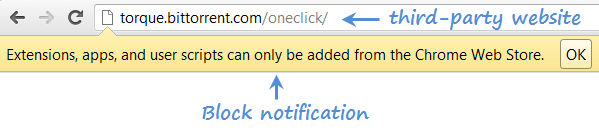
Recently, the Dev, Canary and Beta channels of Google Chrome started blocking installation of extensions originating from outside the official repository, that is, the Chrome Web Store. Attempting to install extensions from third party website produces a notification message that says “Extensions, apps and user scripts can only be added from the Chrome Web Store”. As noted in the message, Chrome also disallows installation of user scripts, which are almost always third-party. This is not a good thing for users wanting to install Greasemonkey scripts or Stylish scripts or any other type of scripts.

chrome-offsite-ext-install2
Installation of off-store extensions were always blocked in Chrome to protect users from malicious scripts and extensions. But previously, users could click on a link to a *.crx file, and Chrome would offer to install the file after a few warnings. Starting in Chrome 21, it has become more difficult to install extensions, apps, and user scripts from outside the Chrome Web Store. By default, all extensions outside the Chrome Web Store are blocked and can only be installed by dragging the downloaded .crx file onto the Chrome Extensions page.
In order to install off-store extensions, the user must download them to a directory and drag them onto the chrome://extensions/ page, which is the same page that opens when you click Extensions under the Tools menu.
chrome-offsite-ext-install
Once you drop a downloaded extension (.crx file) to the Extensions page, the installation will begin as usual.
GHacks shares another way to force Chrome into accepting extensions and scripts from third party websites. This can be done by launching Chrome with the parameter --enable-easy-off-store-extension-install.
To add the startup parameter, right-click on the Chrome shortcut in your desktop and click on Properties. In the target filed, append the path with the above parameter. Notice the space before the two dashes.
chrome-offsite-ext-install3
When you start Chrome using this shortcut, you should be able to install extensions and userscripts from third party sites as before.
Source: Chrome help

Chrome has been Gets Customizable Keyboard Shortcuts for Extensions

Be the first to comment!
Labels: ,

Chrome has been Gets Customizable Keyboard Shortcuts for Extensions

The latest Chrome 22 Developer comes with a very handy new feature - configurable keyboard shortcuts for extensions buttons. What it allows you to do is assign keyboard shortcuts to different buttons added to the toolbar by installed extension. So instead of clicking on a button press the associated keyboard shortcut. This is a great way to get rid of buttons clogging up your toolbar as you can simulate button presses with a shortcut key.

To set up custom keyboard shortcuts open Settings > Tool > Extensions. Scroll down to the bottom of the page and select Configure Commands. A popup box will display the extensions that support this feature. You can then enter a keyboard combination in the box against each extension.
chrome-set-shortcuts
The usefulness of the shortcut will depend entirely on the extensions. For example, they're useful for the "Google +1 Button" extension because you can quickly +1 pages, but they're not useful for the LastPass extension because it only displays a long list of options.
There's an experimental Chrome API for extension developers that allows them to add keyboard shortcuts that trigger actions.
Some shortcuts that work: Ctrl+Letter, Ctrl+Digit, Ctrl+Shift+Letter, Ctrl+Shift+Digit.
[via Google Operating System]

QupZilla: A Feature-Rich WebKit Based Browser That You Must Try

Be the first to comment!
Labels:

The browser market is completely dominated by only three browsers (Chrome, Firefox and Internet Explorer), and even major ones (Opera) have to struggle to make an impression. In such a lopsided market it is easy to forget the smaller players. QupZilla is one such ambitious browser that hopes to make a dent on the impenetrable browser market.

QupZilla is a fast, lightweight web browser based on WebKit and Qt Framework having a distinctive Firefox-like feel. It boasts features comparable to Chrome and Firefox, yet uses far less resources than either of them. QupZilla has all standard functions you expect from a web browser like bookmarks, history viewer, integrated RSS reader, download manager, cookies manager, password manager, certificate manager, History and Bookmarks Sidebars, themes, and more. It has a built-in Adblocker and pop-up blocker, supports Greasemonkey script and Do-Not-Track header, supports Private Browsing, and can import bookmarks from Chrome, Firefox, Opera and HTML file.

Here are some of the distinguishing features of QupZilla that impressed me most.

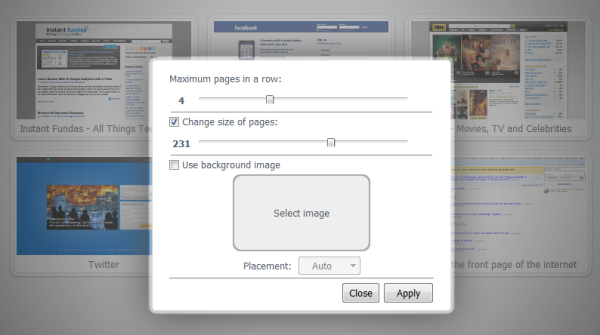
Speed Dial: QupZilla has a speed dial on the new tab page that can be configured to display your favorite websites. The Speed dial is extremely well implemented, supports drag and drop and can be customized with background images, fixed number of rows and thumbnail sized. It’s the ideal clone of the Speed dial feature found in Opera.

qupzilla-1

qupzilla-2

Cookies Manager: The Cookies Manager offers granular control on cookies stored in the browser. You can setup cookies whitelist for websites you want the browser to accept cookies from even if cookies is disabled. Similarly, there is a cookies blacklist where you can define websites you want the browser to never store cookies from. You can also manually choose which cookies you want to delete or keep.

qupzilla-16

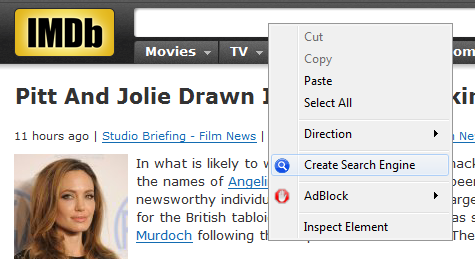
Search Engine Manager: Adding custom search engines in QupZilla is a breeze, just like in Opera. Simply right-click on a search box on a webpage and then click on “Create Search engine”. Assign a shortcut key and you are done. You can now select the search engine from the drop-down menu in the search box or use the shortcut key to search directly from the address bar.

qupzilla-14

You can access the same search engines from the page context menu. Simply highlight the word or phrase on the page, right-click and select the search engine where you want to search the selected text.

qupzilla-18

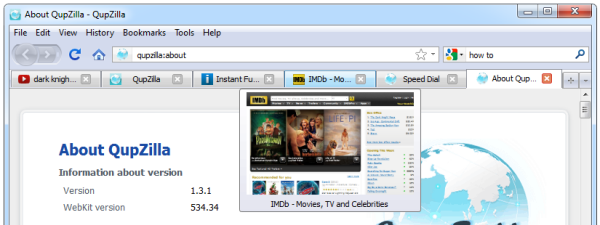
Thumbnail Previews: This is another feature borrowed from Opera. When you hover the mouse pointer over a tab in the tab-bar you can see a small thumbnail image of the tab content. This helps you quickly locate the tab you are looking for.

qupzilla-19

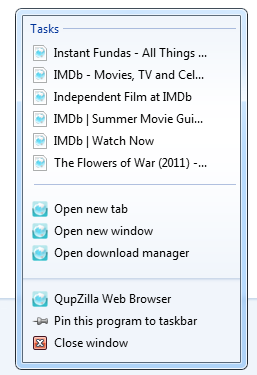
Taskbar Integration: Right click on QupZilla’s icon in the taskbar in Windows 7 and quickly view all opened tabs in the jumplist. You can also launch new tabs, new windows and the download manager.

qupzilla-15

Click to Play Flash: All Flash content are automatically blocked and replaced by a click to play button.

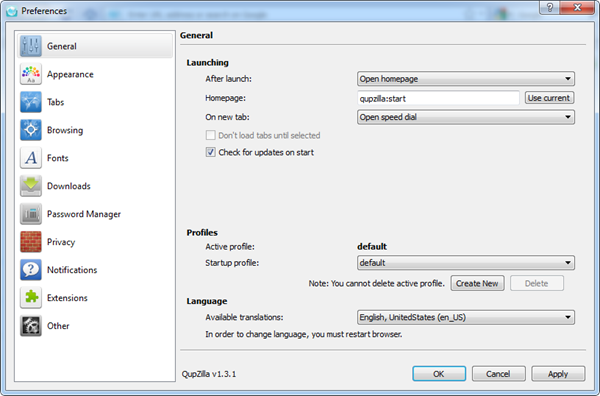
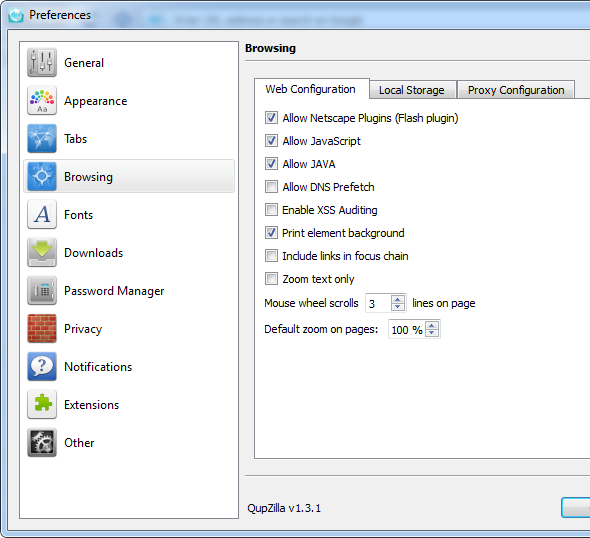
The preferences window is loaded with some fantastic set of options.

Qupzilla supports creation of multiple profiles with the option to choose a startup profile.

qupzilla-3

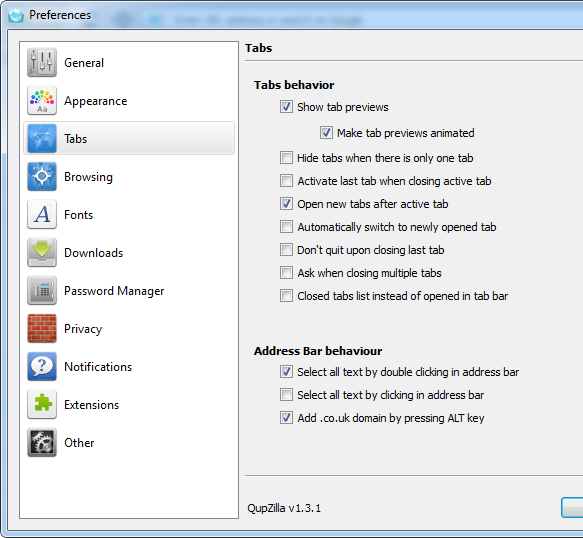
Lots of configuration options for tab behavior.

qupzilla-6

qupzilla-7

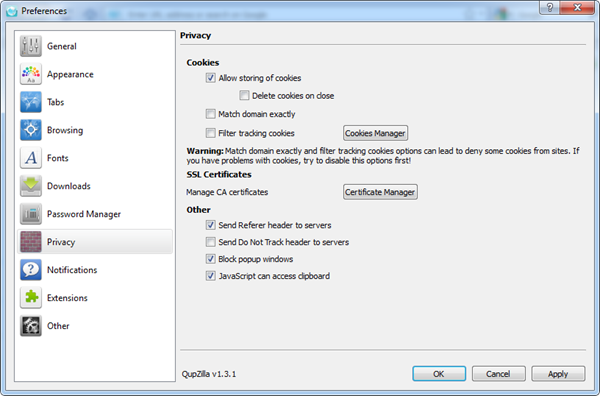
More cookie control under Privacy.

qupzilla-11

A handful of extensions such as Greasemonkey, mouse gestures and Personal Information Manager that auto-fills web forms with stored personal details, such as first and last name, and email address.

qupzilla-20

You can also change browser user agent to make itself identify as Opera, Safari or Firefox.

qupzilla-13

What’s missing:

  • Configurable keyboard shortcuts
  • RSS Feed reader leaves a lot to be desired. Many feeds even fail to load.
  • Needs more extensions.

QupZilla is arguably one of the best alternative browsers that you can find. The browser supports a wide range of Linux distribution aside from Windows. It is also available as a portable version.

Comodo IceDragon: New Browser Based on Firefox with Enhanced Security

Be the first to comment!
Labels: ,

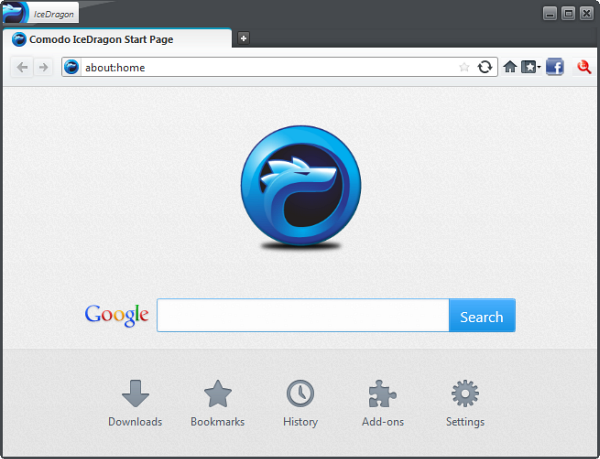
Popular security software developer Comodo has developed a Firefox re-mix with focus on improving the default security features offered on Mozilla’s creation. Called Comodo IceDragon, the new browser is named similar to Comodo Dragon, their implementation of the Chromium browser with potentially privacy-compromising features removed. Comodo IceDragon is built on the Mozilla browser core and combines the basic functionalities of the original code with Comodo’s security features.

In this first release, the browser includes just two basic security features - Comodo Secure DNS and Site Inspector. Comodo Secure DNS is a DNS lookup service that employs malware detection and cloud-based scanning aimed to prevent malicious, harmful and scam sites from loading in your browser. The Site inspector is a malware scanning and blacklist monitoring service for websites. The Site inspector tool integrated into Comodo IceDragon is, however, a demand only scanning service. It doesn’t proactively protect the user from visiting malicious websites even if the website URL is blacklisted under Comodo Site Inspector.

icedragon1

icedragon2

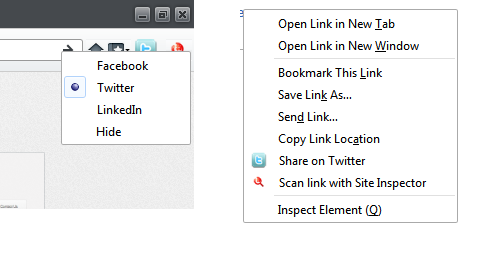
Comodo IceDragon also includes a social sharing button that allows users to quickly share links on different social networks such as Facebook, Twitter and LinkedIn. The social sharing button is readily visible in the toolbar next to the Site Inspector button. Thankfully, there is an option to hide both the buttons.

icedragon3

Aside from the black and blue hues and some visual differences, Comodo IceDragon’s interface is identical to Mozilla Firefox. Users can enjoy the same sort of flexibility and customization as in Firefox, thanks to the support for Firefox add-ons. But users who take advantage of Firefox Sync to synchronize their data across multiple Firefox installation will have to sacrifice this functionality as Firefox Sync is absent in Comodo IceDragon.

Currently, there’s not much to write about Comodo IceDragon and the so called “security features” aren’t impressive enough to lure users from the massively popular Firefox browser. These features can be easily replicated in your current browser, no matter what, using system wide Comodo Secure DNS and any website blacklisting/malware scanning service. Firefox also doesn’t suffer from inherent privacy issues like Google Chrome does, which is one of the major selling point for Google Chrome clones such as Comodo Dragon and SRWare Iron.

The only selling point for Comodo IceDragon is security, but I see no reason why Firefox cannot be made more secure by third-party extensions.

How to Secure or Password Protect your Firefox

Be the first to comment!
Labels: ,

How to Password Protect Firefox

Firefox has an option to set a Master password to protect sensitive information in your Firefox profile. However, this is limited to only protecting unauthorized users from viewing your saved passwords on websites. The master password doesn’t prevent users from launching Firefox or opening pages or accessing your bookmarks. It also doesn’t prevent users from accessing sites the browser is already logged in to. If you are looking to protect your entire Firefox profile or the browser itself and not just your passwords, we have two add-ons for the purpose.

Before you can use these add-ons, you have to setup a master password. For this, click on the Tools menu and then click on Options. In the Options window, click on the Security icon. Check the box “Use a master password” and then define your password.

firefox-master-pwd

StartupMaster

StartupMaster is a simple add-on for Firefox that asks for the master password at launch. Every time you start Firefox, you will get a password prompt as shown below, before the main window is displayed. If there is no master password set, the extension does nothing.

firefox-startupmaster

StartupMaster also fixes the annoying multiple password prompt issue. Once you are logged in with the master password, Firefox won’t bother you with password prompts when you attempt to view your saved passwords.

Master Password+

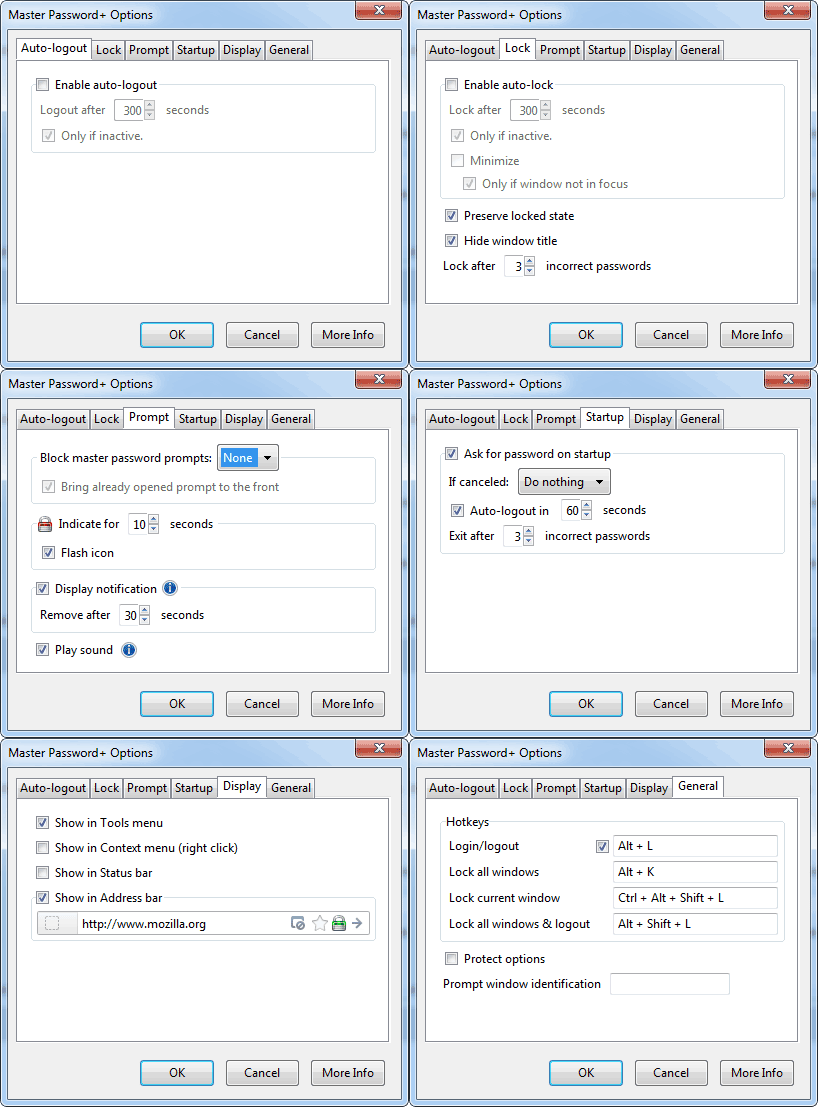
Master Password+ greatly enhances the security feature of the master password by allowing owners to completely lockdown the browser, set browsing time limits, boot out inactive users, and more.
What Master Password+ can do:
  • Ask for master password on Firefox startup
  • Exit Firefox when a number of wrong password attempts are made
  • Automatically lock browser when user is inactive for a certain period of time
  • Automatically lock browser after a certain time has elapsed even if the user is active. This is useful to enforce browsing time limits on the user
  • Block multiple password prompts when the user is already logged in
  • Use keyboard hotkeys to lock the browser, lock the active window or lock all windows
firefox-master-pwd-plus

PictuTools: Add Several Online Image Editing Tools to Context Menu [Firefox]

Be the first to comment!
Labels: ,

PictuTools: Add Several Online Image Editing Tools to Context Menu [Firefox]

There are lot of online resources that lets you change, resize, crop and enhance images without having to learn to use heavy weights like Adobe Photoshop. Judging by the sheer number of such tools available, and the interest in acquiring them by the likes of Google it can be assumed that they are immensely popular. If you happen to use them often and have these sites tucked away in your bookmarks, and if you also use Firefox, you’ll find PictuTools pretty useful.

This add-on implements a context-menu which gives you quick access to several online services providing image manipulation tools such as Pixlr, BeFunky, SumoEditing, LunaPic and some more. You can convert images to a number of different formats including EPS, GIF, ICO, TIFF, PDF, TGA and WebP, perform reverse image search, view EXIF data, identify fonts and generate QRCodes among a few. It also offers a couple of image hosting sites to upload images for re-sharing, and an option to share images on Facebook and Twitter.
pictutools
When you want to edit an image you found online, simply right click on the image and choose the service which you want to use. This will take you to the service provider’s website with the image automatically uploaded and ready to work upon. At the moment the add-on only works on web images and not on local files on your hard disk.
The full list of supported services are given below.
Edit
  • BeFunky: BeFunky lets you apply photo effects, enhance, edit pictures and photos online. Cartoon, sketch, painting, pop art and more...
  • DrPic: Crop, Resize, Add Text, Special Effects, and Host your pictures online for free (with ads, in HTML/JS)
  • FotoFlexer: FotoFlexer lets you remove blemishes, change skin/hair color, morph photos and more! 100% free (with ads)
  • Iaza: Provides several conversion and effect tools by just clicking links
  • LunaPic: Edit Your Pictures with this basic but powerful online editor (ads, HTML)
  • Phixr: Online photo editor with no Flash required
  • Pixenate: Edit photos online, fast and easily - No plugins required.
  • PixLR: Flash-based online image editor.
  • PixLR (express): Flash-based online image editor, express/basic version
  • PixLR (o-matic): Flash-based online image editor which lets you apply different effects easily
  • SumoPainting: With SumoPaint you can Create, Share and Remix your Images.
  • Zygomatic: HTML-based editor. Resize, filters, sepia, crop, rotate, flip, effects
  • DeMotivational Poster: Meme Generator
  • pomf.me: Captioning tool
  • Ancient Look: Makes the image look like very old photographs
  • DynamicDrive Optimizer: Lets you easily optimize your gifs, animated gifs, jpgs, and pngs, so they load as fast as possible on your site.
  • SmushIt Optimizer: Smush.it uses optimization techniques specific to image format to remove unnecessary bytes from image files. It is a "lossless" tool, which means it optimizes the images without changing their look or visual quality.
Host
  • ImageShack: Host on ImageShack
  • Imgur: Host on imgur.com image hosting
  • OverPic: Host on overpic.het image hosting
  • PostImage: Host on postimage.org
Information
  • Exif viewer: View EXIF information for the image
  • MetaPicZ: Metadata and exif viewer
  • HTTP Viewer: See exactly what an HTTP request returns to your browser
Share
  • AddThis: Share to any of the supported websites by AddThis
  • Facebook: Share on Facebook
  • Twitter: Tweet this image
  • QR Code: Obtain a QR code which point to this image.
Similar
  • Baidu: Reverse image search using the Japanesse Baidu Service
  • Cydral: Reverse image search using Cydral
  • Google: Reverse image search using Google Images
  • TinEye: Reverse image search using TinEye
  • Yandex: Reverse image search using the Russian Yandex Service
Misc
  • Decode QR Code: Lets you decode a 1D or 2D barcode
  • i2OCR: Free online OCR that converts images into editable text.
  • WhatFontIs: Send the image to whatfontis.com to identify the font used.
  • WhatTheFont: Find what the type of font is used on the image
  • WhatsItsColor: Find the complementary and primary color of the image
  • ZoomIt: Converts your image to the Deep Zoom format, which lets you smoothly and efficiently explore the whole image, no matter how large.

Create Firefox Desktop Shortcuts for Specific Profiles

Be the first to comment!
Labels: ,

Firefox stores a user's preferences and data such as installed add-ons, saved passwords, history, bookmarks and others in a unique profile. The first time you start Firefox, it automatically creates a default profile and stores all settings associated with the profile within a special profile folder on your computer. Your profile folder is kept in a separate place from the Firefox program so that if something ever goes wrong with Firefox your information will still be there. It also means you can uninstall Firefox without losing your settings and you don't have to reinstall Firefox to clear your information or troubleshoot a problem.

It’s also possible to have multiple Firefox profiles, each containing a separate set of user information. Different profiles doesn’t necessarily mean different users. The same user can have more than one profile. For instance, you can have a profile for work and another for home. Each profile can have different sets of extensions and bookmarks and customization.

Previously I showed how to create and manage profiles in Firefox using the Profile Manager. Typically, you launch the Profile Manager by using the “–p” switch. That means, you launch Firefox by typing “firefox –p” in the Run dialog box.

firefox-profile-run3

Make sure that Firefox is not running. If it is open, exit it before running this command.

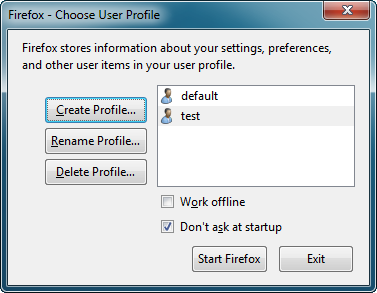
This will launch the Firefox Profile Manager.

firefox-profile-manager

From here you can create new profiles or choose an existing profile to start Firefox with. Now clearly, this involves too many extra steps. So here is a nifty trick.

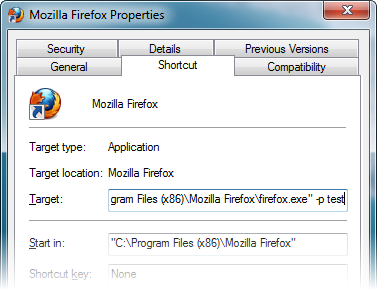
Create a new shortcut of Firefox on your desktop or start menu. Right-click on the shortcut and then click on Properties.

Now on the Target filed, add “-p <profile-name>” at the end of the path. It should look something like this:

"C:\Program Files (x86)\Mozilla Firefox\firefox.exe" -p test

firefox-prop

This shortcut will open Firefox loaded with the profile named “test”. No need to go through the Profile Manager. You can do this for every profile you have created.

If you want to launch a different profile while one Firefox instance is already running, Firefox will just open a new window of the active profile. To fix this issue, add the parameter “-no-remote” to each shortcut’s Target field.

In our example, the Target field becomes:

"C:\Program Files (x86)\Mozilla Firefox\firefox.exe" -p -no-remote test

This trick fixes another annoying issue. When you try to open the private browsing mode, Firefox closes the current session. This is totally undesirable. But with the “-no-remote” parameter in place, you will be able to open Firefox private browsing mode and normal browsing together at the same time.

[via SumTips]

Enable/Disable Chrome Extensions on Specific Websites

Be the first to comment!
Labels: ,

Google Chrome extensions can be very powerful, but they can also be a resource hog. They load into memory and wait until you use them. While some extensions like FlashBlock or NoScript work universally, there are many that are useful only on certain websites, for example, the YouTube Ratings Preview is only useful on YouTube or Amazon extensions that work only on the shopping site. Wouldn’t it be wonderful if you could selectively disable them until you actually need them? Thanks to Extension Automation, you can.

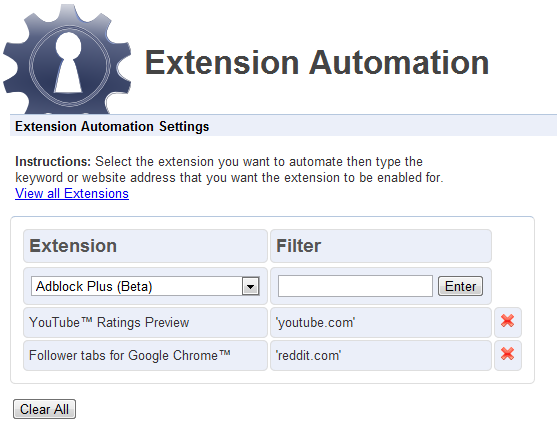
This Chrome extension allows you to enable your installed extensions only on specific websites and thereby cut down memory consumption by the browser.

extension-automation3

Install Extension Automation and head directly to the settings page. From the drop-down menu select the extension you wish to disable and then under Filter type the URL of the website where you want the extension to work. For all other sites, the extension will remain disabled and unloaded from memory. You can type multiple URLs using commas to separate them. You can also enter keywords. When Extension Automation find those keywords in a page, it will automatically enable the chosen extension. 

You can test whether Extension Automation is working by using the built in Task Manager (Shift+Esc) to inspect which extensions are running. Just open the webpage where the extension(s) is filtered to run and check the Task Manager, then open any other page where the extension is not meant to run and check the Task Manager again. You will notice a drop in memory usage.

If you’ve installed plenty of Chrome extensions, Extension Automation is a must have.

Vimium Adds Plenty of New Keyboard Shortcuts to Chrome

Be the first to comment!
Labels: ,

Vimium is an extension for Google Chrome that provides around 40 new keyboard shortcuts that allows navigation around a web page from the comforts of the keyboard. Of course, keyboard or mouse is a personal choice and whether or not the user considers the keyboard a comfortable replacement for the mouse depends solely on the user. But for people who have grown accustomed to the keyboard, such as programmers and Unix/Linux users, Vimium is a big improvement for Chrome. The extension was developed in the “spirit of Vim”, the most keyboard efficient text editor in existence.

Vimium adds the following keyboard shortcuts to Google Chrome.

Navigating the current page:

?       show the help dialog for a list of all available keys
h       scroll left
j       scroll down
k       scroll up
l       scroll right
gg      scroll to top of the page
G       scroll to bottom of the page
d       scroll down half a page
u       scroll up half a page
f       open a link in the current tab
F       open a link in a new tab
r       reload
gs      view source
i       enter insert mode -- all commands will be ignored until you hit esc to exit
yy      copy the current url to the clipboard
yf      copy a link url to the clipboard
gf      cycle forward to the next frame

Using find:

/       enter find mode -- type your search query and hit enter to search or esc to cancel
n       cycle forward to the next find match
N       cycle backward to the previous find match

Navigating your history:

H       go back in history
L       go forward in history

Manipulating tabs:

J, gT      go one tab left
K, gt      go one tab right
g0         go to the first tab
g$         go to the last tab
t          create tab
x          close current tab
X          restore closed tab (i.e. unwind the 'x' command)

Additional advanced browsing commands:

]]      Follow the link labeled 'next' or '>'. Helpful for browsing paginated sites.
[[      Follow the link labeled 'previous' or '<'. Helpful for browsing paginated sites.
<a-f>   open multiple links in a new tab
gi      focus the first (or n-th) text input box on the page
gu      go up one level in the URL hierarchy
zH      scroll all the way left
zL      scroll all the way right

Vimium also supports command repetition. For example, hitting '5t' will open 5 tabs in rapid succession. ESC (or <c-[>) will clear any partial commands in the queue and will also exit insert and find modes.

vimium

Vimium provides ways to remap or unmap any of the default key bindings, as well as override Chrome’s default keyboard shortcut. For this, open Vimium’s options page and expand the "Advanced Options" section.

Enter one of the following key mapping commands per line:

  • map key command: This maps a key to a Vimium command. For example: map <c-d> scrollPageDown will map ctrl+d to scrolling the page down. Chrome's default behavior of bringing up a bookmark dialog is suppressed.
  • unmap key: This Unmaps a key and restores Chrome's default behavior. Example: unmap <c-d>
  • unmapAll: Unmaps all bindings. This is useful if you want to completely wipe Vimium's defaults and start from scratch with your own setup.

To see available Vimium commands click on the "Show Available Commands" link near the key mapping box. The command name appears to the right of the description in parenthesis.

Additional options include, the ability to exclude URLs where you do not want Vimium’s shortcuts to work, for instance, Google Reader which has it’s own keyboard shortcuts; and the ability to define previous/next page patterns in web pages.

[via Chrome Story]

Tab Stacking Comes to Firefox, Brings Better Tabs Overflow Handling

Be the first to comment!
Labels: ,

Firefox has a peculiar way of handling tabs overflow that occurs when users open too many tabs for the tab bar to display properly. By default, Firefox pushes the extra tabs off the screen as new ones get spawned; the tab bar acting as a conveyor belt of sort. Arrows appear on both edges of the tab bar that allows the user to horizontally scroll the tab bar and access the out-of-screen tabs. Personally, I find this behavior disorienting.

It seems the accepted rule for handling tabs overflow, as followed by Opera, Chrome, Internet Explorer and the majority of browsers, is to resize them to accommodate new tabs. So I use the Noverflow add-on (now called Prevent Tab Overflow) to get this behavior in Firefox. This might not be the best way to handle tabs overflow but definitely better than the way Firefox does.

Another way to tackle tabs overflow is to use stacks, the concept introduced by Opera in version 11, where you manually drag and drop tabs over each other to create stacks. Chrome followed suit and added an experimental automatic tab stacking feature. Now tab stacking is available in Firefox through the Tab Stacking add-on.

Tab Stacking automatically stacks tabs on top of each other when the tab bar in Firefox becomes crowded. The add-on does this dynamically by stacking tabs on either far side of the active tab. The tabs goes in and out of the stack as the user changes focus from one tab to the next. There is no permanent stack of tabs. The image below will give you an idea of how this tab stacking works.

SNAG-0052

The active tab and the three tabs around it are in an expanded state. The tabs immediately next to them are collapsed in a stack. As you can see, there are two stacks on both end of the tab bar. When you change focus to a new tab, the stack changes.

SNAG-0053

The user can control the minimum width, which is the width of the active tabs and those immediately around it, and the width of the stacked tabs. There is another option to set the maximum width of the stacked tabs.

SNAG-0051

Tab Stacking is a proof-of-concept add-on in alpha version and may contain several bugs.

Related: 10 Best Tab Management Extensions for Chrome

Backup Profile of all Web Browsers With Hekasoft Backup & Restore

Be the first to comment!
Labels: ,

With competition among web browser makers so fierce, you cannot afford to ignore a particular browser because if you do, you are definitely going to miss out on lots of interesting technology. Just the other day, Opera released version 12 with tons of new features, while Firefox is perpetually releasing new features one after the other. Even Internet Explorer isn’t far behind. So instead of sticking to a single browser, we are pretty much coerced into using every browser. Now if you are serious about any browser, you are likely to have customized it to your taste – custom buttons, custom toolbar arrangement, imported your bookmarks and even setup synchronization. But what happens when you have to reinstall Windows, or move to a new computer?

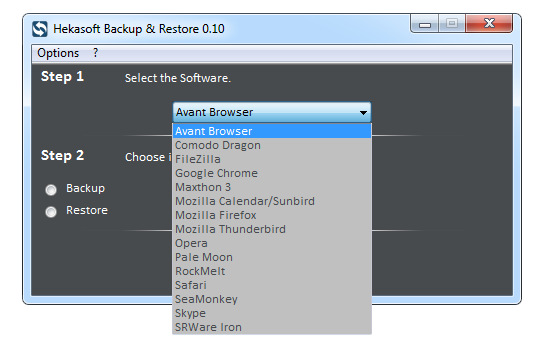
Hekasoft Backup & Restore is a freeware program that offers a one-click solution to browser backup and restore. The utility allows you to backup the user profile folder of all your browsers which contain all your settings, customization, bookmarks and pretty much everything that you have configured on your browser.

hekasoft

Simply run the tool, select your browser – one at a time – choose the backup option and click Start. Hekasoft Backup & Restore will create a backup file and save it to a user defined location as a .backup file. The .backup file is actually nothing more than a renamed ZIP file. It’s possible to open the .backup file using any file archiving program and the content of the file inspected.

To restore the browser’s user profile, open the same tool, select the browser and this time choose the restore function. You will be asked to locate the previously saved backup file. That being done, your user profile will be restore back to the chosen browser.

Aside from browsers, the program can backup user profiles of an interesting mix of programs that includes the FTP program FileZilla, email program Mozilla Thunderbird, calendar program Mozilla Sunbird and VoIP program Skype.

Hekasoft Backup & Restore currently supports:

  • Avant browser
  • Comodo Dragon
  • FileZilla
  • Google Chrome
  • Maxthon 3
  • Mozilla Calendar/Sunbird
  • Mozilla Firefox
  • Mozilla Thunderbird
  • Opera
  • Pale Moon
  • Rockmelt
  • Safari
  • SeaMonkey
  • Skype
  • SRWare Iron

I have a feeling, there is more to come.

Get Now Playing Notifications for YouTube Videos on Desktop [Firefox and Chrome]

Be the first to comment!
Labels: , , ,

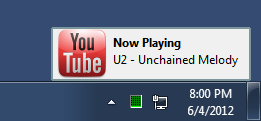
Some media players show pop-up notification on the desktop whenever the track changes even if the media player is minimized or not in focus. I’m not particularly fond of those, but if you are, you will love the Now Playing notification for videos playing in YouTube. If you are wondering why one should need notification when they can see for themself which video is playing, you are forgetting that YouTube is the most popular destination for listening to music.

Most users will load a video album playlist, click the play button and minimize the browser or otherwise carry on surfing. With YouTube notification, these users get the same functionality they get from their desktop media player. And here is the interesting part: these notifications are displayed on the desktop, out of the browser.

youtube-notification-chrome youtube-notification-firefox

Now Playing YouTube Notification in Chrome (left) and Firefox (right).

Whenever a new video loads from the playlist, a small window pops open near the notification tray displaying the title of the song. The notifications stays just long enough for you to notice and disappears on it’s own.

Want these notifications? Get them for Firefox and Chrome.

Related: How to Download All YouTube Videos in a Playlist

Set Maximum Number of Tabs to Open in Firefox

Be the first to comment!
Labels: ,

Max Tabs is an add-on for Firefox that allows users to set the maximum number of tabs that could be opened in any Firefox window. If you are asking “Why?”, the answer is simple: to bring order into tab madness. If you have the habit of forever opening new tabs without closing the ones already open (something that happens to me often when reading Wikipedia articles) you will agree that it’s a good idea to have someone monitoring over you.

Another reason why you may want to limit the number of tabs is if memory is scarce. By limiting the number of pages you open, you limit the amount of memory Firefox consumes which makes the browser less prone to crashes and improves responsiveness.

By default Max Tabs the maximum number of tabs opened in a window is set to 10. The extension keeps count of the number of opened tabs on the lower-right on the addon bar. If you try to go over the limit, Max Tabs displays a message “You’ve decided not to open more than x number of tabs” and promptly closes the new tab.

maxtabs

If you decide you really need to open the extra tab, you have to disable Max Tabs. Thankfully, this is easy as Max Tabs is a restartless add-on. You can swiftly enable or disable the add-on without restarting Firefox.

Also read how to Load Tabs Progressively in Firefox

Turn Bookmarklets into Pretty Firefox Buttons

Be the first to comment!
Labels: ,

If you use a lot of bookmarklets, you probably have them cramped inside your bookmarks bar. Some users suggest using folders to organize bookmarklets, just like you organize your bookmarks. But if you want to get them out of your bookmarks bar (which serve a totally different purpose) and into the toolbar where they should logically reside, here is nice trick.

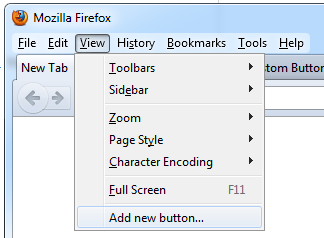
Install the Custom Buttons add-on. Restart Firefox and enable the Menu Bar. From the View menu click on 'Add new button...'. You can get to this option by right clicking on the toolbar too. This way, you won’t have to enable the Menu bar.

ff-add-button

Enter a Name for the button, but leave the Button URL empty. The add-on comes with a few colored stars, but we will use 16x16 favicon for the service. Grab the favicons of the services whose bookmarklet you wish to use by going to getfavicon.org and entering the URL of the service. Save the favicons somewhere on your hard drive and then load them into the button creator.

ff-add-button2

Under the Code tab, add the JavaScript of the bookmarklet and wrap it like this:

loadURI("BOOKMARKLET-GOES-HERE");

You can get the JavaScript of your existing bookmarklet by simply coping the URL from the bookmarklet button.

Once your button is created, click View > Toolbars > Customize, and then drag the buttons from there onto any part of your browser toolbar.

ff-bookmarks-button

[via ReadWriteWeb]

Move Firefox Add-on Icons Inside the Address Bar

Be the first to comment!
Labels: ,

Firefox allows you to freely shuffle the browser’s buttons and icons added by extensions around on the interface. With the exception of the Menu bar, you can place icons on different toolbars - the Navigation bar, bookmarks bar, the add-on bar (which is specially created for putting all your icons) and even on the far right on the Tab bar. That should be choices enough for the user. But ever fancy putting your icons inside the address bar? Yeah, that is possible too.

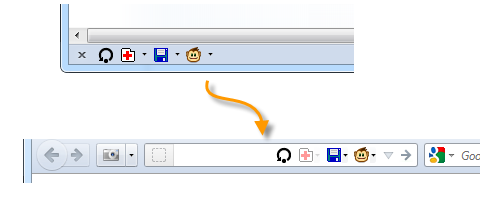
url-addon-bar is an an add-on for Firefox that moves all icons in the Add-on bar inside the address bar field. The visibility of the icons can be controlled by enabling or disabling the Add-on bar. Once url-addon-bar is installed, the Add-on bar is no longer available at the bottom of the Firefox window.

url-addon-bar

You customize the icons inside the address bar the same way you customize Firefox’s interface – by drag and drop. During the customization process, the Add-on bar temporarily appears at the right place, i.e. at the bottom. After you have dragged icons in and out of the Add-on bar, click Done and the icons will once again appear inside the address bar.

The only problem with url-addon-bar is that the icons disappear in fullscreen mode.

20+ Chrome Apps for Google Drive

Be the first to comment!
Labels: , , ,

google-drive-iconThis is an exciting week for personal cloud storage. We saw the official release of Microsoft SkyDrive, an update from Dropbox and the long awaited Google Drive.

Google Drive was a bit disappointing. Only 5GB space for free users (we expected more) and functionality wise only little more than Google Docs. In any case, third party apps for Google Drive are coming hard and fast. Here are some of the most interesting ones available for Google Chrome right now.
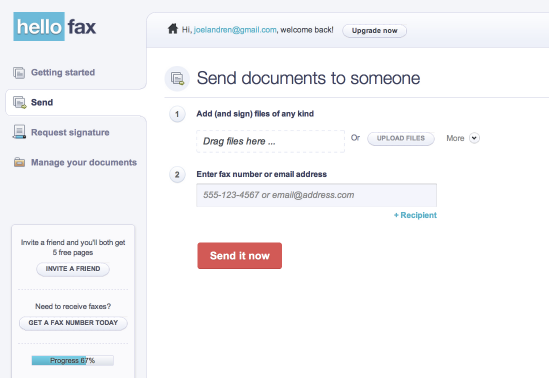
HelloFax

hellofax

HelloFax makes it easy to sign documents and send faxes online. Put in a fax number and HelloFax will send your document to a fax machine. If someone sends you a fax, HelloFax will forward it to your email as a PDF. Now with Google Drive integration, you can send and receive fax directly to your Google Drive account. After installing the HelloFax app, you’ll get a HelloFax folder in your Google Drive account. This folder will be automatically populated with your inbound and outbound faxes, as well as your signed documents and signature requests.

Gantter

gantter

Gantter.com is an online project scheduling application that allows you to easily save and share your project schedules with others anytime and from anywhere.

Whether you are planning a complex project like a large construction project, rolling out a new website, managing a big IT project, or simply need to manage your next home renovation project Gantter is the tool for you. Gantter even provides you a gallery of project templates to help you build your schedule in a fraction of the time. Gantter also allows you to import your Microsoft Project files. Google Drive users enjoy Gantter's seamless integration which allows you to easily save and open schedules directly to and from Google Drive.

Lucidchart

lucidchart

Lucidchart is an HTML5-based visual collaboration tool which allows users to collaborate and work together in real time to create flowcharts, organizational charts, website wireframes, UML designs, mind maps, software prototypes, and many other diagram types. Lucidchart features a drag-and-drop interface with hundreds of shapes to choose from. Results can be exported as image files or PDFs. Lucidchart is also one of the first web-based application to offer compatibility with Microsoft Visio.

With the new Lucidchart app for Google Drive installed, you can create, open and share Lucidchart documents as well as Microsoft Visio documents from Google Drive. Exported Lucidchart documents can be stored directly in Google Drive. You can also initiate daily or weekly backups of all of your Lucidchart documents to be stored in Google Drive.
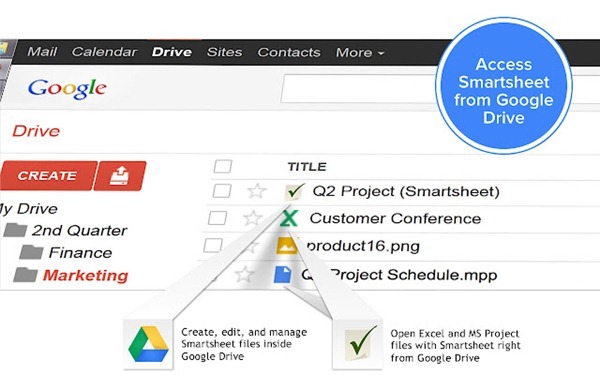
Smartsheet

smartsheet

Smartsheet is an online project management and crowdsourcing tool that lets you turn your Google Spreadsheet, Excel or MS Project file into an online project, complete with file attachments and threaded discussions on any row. The seamless integration with Google account allows users to open Microsoft Project and Excel files in Google Drive with Smartsheet and attach files from Google Drive to any row in Smartsheet. The service also syncs with Google Calendar and Google Contacts.

Smartsheet is not free, but 30-day trial plans are available. Paid plans start at $15.95/month.

SlideRocket

sliderocket

SlideRocket is one of the best online slideshow creation tool. With the latest integration with Google Drive,
you can now save and share your presentation directly from Google Drive. Google Drive users can also create new presentation using SlideRocket from within Google Drive. Whenever a Google Drive user is invited to collaborate on a presentation, it can be automatically opened for use in SlideRocket.

From within a SlideRocket presentation, users can collaborate with Google Drive users and manage presentations and applications from a single location to access documents and materials, including presentations, spreadsheets, PDFs, photos, videos and presentation resources on the web.

Pixlr Editor

pixlr

Popular online image editor Pixlr, that looks a lot like Adobe Photoshop, is now available on Google Drive. This means that now you can open any image saved on your Google Drive account directly on Pixlr Editor for editing. Finished images can also be saved directly to Google Drive.

Pixlr Editor provides some fine filters including mimic HDR, glamor glow, tilt-shift, Gaussian blur, vignette, noise and lots of more. Advanced adjustments tools like Levels and Curves are available aside from basic tools like Auto levels, Hue/Saturation and Brightness/Contrast. The editor is also capable of opening PSD files, but with limited support.

Aviary

avairy

Another popular photo editor tool that recently upgraded to add support for Google Drive is Aviary. Just right click on any photo in your Google Drive and select Open With > Aviary for Google Drive. The Aviary editor will open in a new window where you can edit your pictures. When you're done, just click save and your photo will be updated in Google Drive. And because Google Drive saves previous versions of your photos, you can always revert or compare your newest version with the original photo.

WeVideo

wevideo

WeVideo is an online collaborative video editing tool that enables you to create your own movies by simply dragging and dropping videos to the timeline. Once you install the WeVideo for Chrome app, you can import videos on your Google Drive account to WeVideo’s editor and then join, clip or split them, add effects, music, transitions, graphics, slides and more.

WeVideo includes more than 30 effects and 50 transitions, and much of the functionality found in Adobe Premiere, Apple Final Cut Pro X, and other desktop editors, with additional capability for collaborative editing.

WeVideo's subscription packages start with a free version that offers 1GB of workspace and limited editing and output, with premium levels up to $79.99 a month for 100GB of storage, 720p output, and priority processing, among other features.
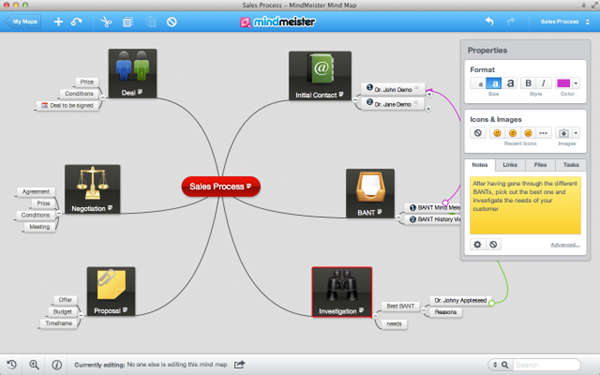
MindMeister

mindmeister

MindMeister is an online collaborative mind mapping application that allows you organize brainstorming sessions with your team members over the Internet. You can plan projects, manage meetings and sketch out business plans online with partners and colleagues, all in real time.

Google Drive integration allows you to open, view and edit mind map files from Google Drive and synchronize entire maps list including folders with Google Drive. Sharing is also easy as MindMeister can access your Google contacts. Maps can be exported to Google Drive as image, text, PDF, and many other formats. You can also backup all maps to Drive in bulk.

Checkout more Google Drive apps at the Chrome Webstore.


Recent comments

Recent comments

Followers

Sponsors

Recent comments

fefew

Recommend on Google

Copyright © 2011 All Rights Reserved Thesis skin. by Nitin. Converted into Blogger Template by TheTechFizz.