Get the latest updates from us for free

Sign-up for FREE weekly Newsletter.
Showing posts with label Windows 7. Show all posts

12+ New Windows 7 Themes

Be the first to comment!
Labels: ,

12+ New Windows 7 Themes

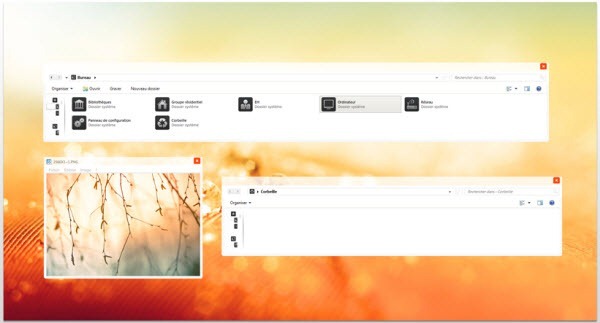
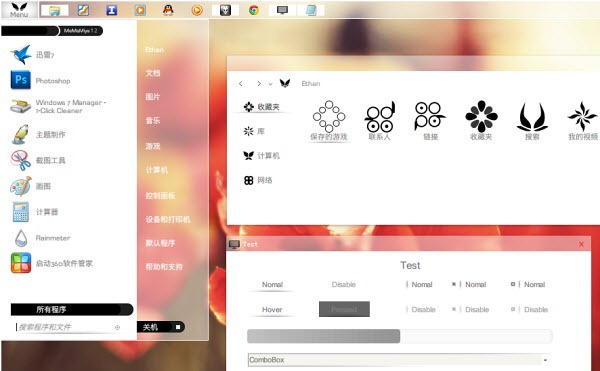
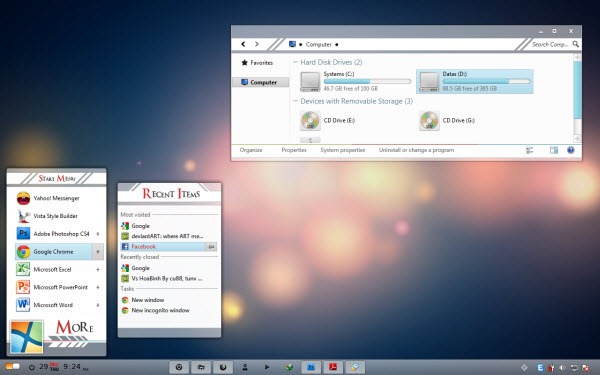
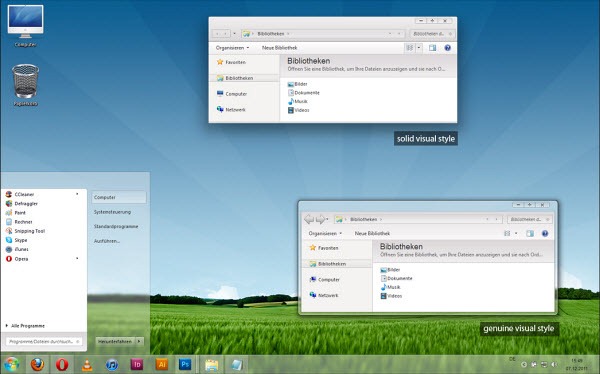
After a long hiatus, I’m back with yet another collection of themes for Windows 7 released during the last couple of months. All the themes have been hand picked, but not tested. Please refer to the theme author’s instruction on how to install the themes. To see previous collection of themes, visit the Customization section.

Aero+

aero

Amana2

amana2

Androidism

androidism

Bouark

bouark_vs

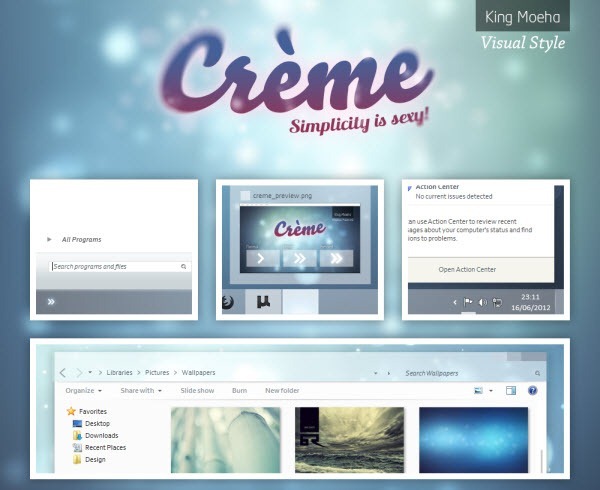
Creme

creme

Dockbar 7

dockbar_7

Luto

luto

Osituro

osituro___windows_7_vs

Romerah

romerah__beta

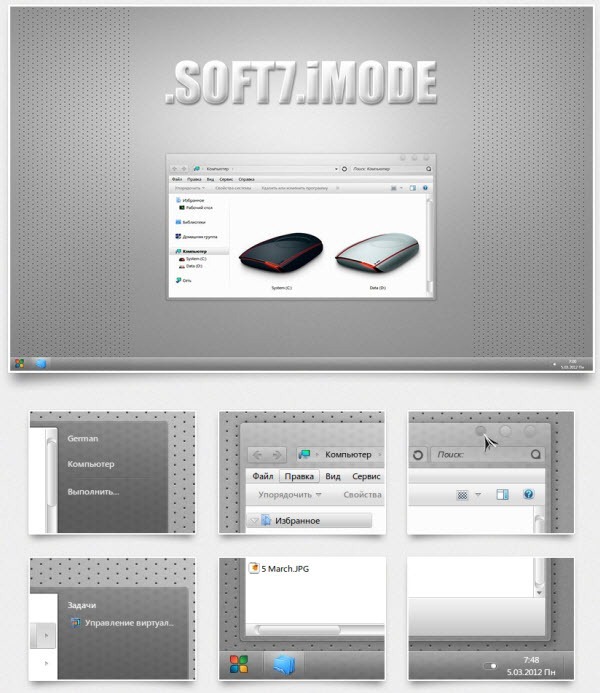
.Soft7.iMod

soft7_imod

Stylysh lite

stylysh_lite

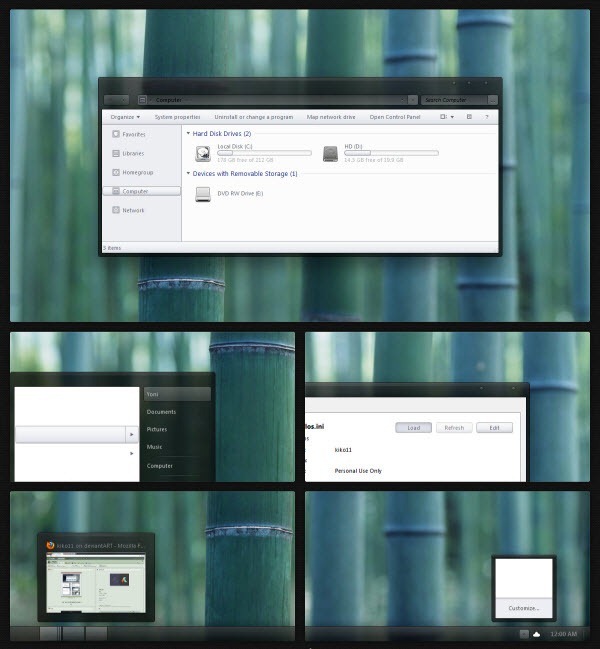
Tonic for Windows 7

tonic_for_windows_7

Remove Obsolete Notification Area Icons in Windows 7

Be the first to comment!
Labels: , ,

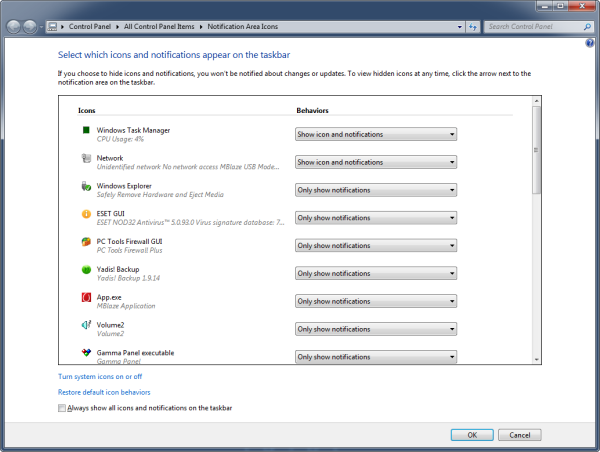
Windows 7 lets you customize the behaviour of the icons that appear on your system tray, also called the notification area. You can configure the icons to remain hidden unless there is notification to display. This reduces the visual clutter on the system tray. The trouble is, Explorer keeps a cache of the icons and over time this cache can grow to hundreds of items. If you right click on the Taskbar and choose “Customize Notification Icon” you can see many obsolete items on the list. Some of these programs you might not even have on your computer anymore.

notification-area-icons

Here is how you can clean up this list.

Open registry editor by typing regedit in the Run box and navigate to the following key:

HKEY_CURRENT_USER\Software\Classes\Local Settings\Software\Microsoft\
Windows\CurrentVersion\TrayNotify

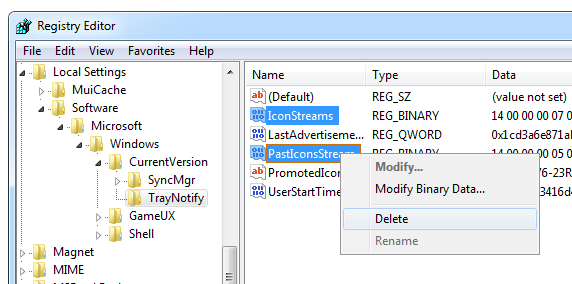
Select IconStreams and PastIconsStream and delete them both.

notification-area-icons-delete

Now you will need to restart explorer, or logoff and login again or restart the computer for the changes to take effect.

This will remove all obsolete icons from the list except the ones already present on the Notification Area. Be aware that any customization you have done will be lost and reset to the default values.

Alternatively, you can use the Notification Area Cleaner for Windows 7 – a simple tool that automates the cleaning process including stopping and restarting Explorer. So you don’t have to reboot the computer or logoff from Windows.

Get Windows 8’s WinX Menu in Windows XP, Vista and 7

Be the first to comment!
Labels: , ,

In Windows 8 when you right-click on the lower-left corner of the screen, you open the WinX menu. The WinX menu is so called because it can be also launched by the keyboard shortcut Win+X. The WinX menu has shortcuts to some advanced system functions that are slightly out of reach, for instance, the Control Panel, the Task Manager, Device Manager, Command Prompt, Registry Editor, Computer Management etc. WinPlusX is free program that adds the WinX menu to previous versions of the OS – Windows XP, Vista and 7.

The program consist of a single portable EXE file. Once this program is up and running, you can access the WinX menu by pressing the keyboard hotkey Win+K, just like in Windows 8.

winplusx_4_0

You can also right-click on the start button to launch this menu, but this actually launches two menus – the WinX menu added by WinPlusX and the default context menu of the start button having two options (Properties and Windows Explorer). These two menus are superimposed with the latter hiding the last two entries on the WinX menu. Using the Win+X shortcut doesn’t have this problem though.

You can use this menu as an application launcher because you can customize this menu to add or xremove your own shortcuts to it. These shortcuts are saved as a simple list in an INI file in the same directory as WinPlusX. To remove entries from WinPlusX click the ‘Remove Shortcut’ checkbox and then click on the menu shortcut you wish to remove. Be sure to uncheck the ‘Remove Shortcut’ checkbox once you are done, otherwise you will inadvertently remove shortcust from the menu when you try the launch it.

[via AskVG]

8 Cool Windows Settings Hidden Under ‘Ease of Access’ or ‘Accessibility Options’

Be the first to comment!
Labels: ,

accessibility_iconDo you recognize the icon on the left? It belongs to Windows XP’s “Accessibility options” Control Panel applet. The icon resembles a person in a wheelchair to indicate that it contains settings that makes the computer easy to use for people with physical disabilities. In Windows 7, “Accessibility options” was renamed to “Ease of Access” and the icon was also modernized. Unfortunately, because of the poor choice of icon in Windows XP, most Windows users assume that “Ease of Access” options are for handicapped people such as people with poor eyesight, poor hearing and even disabled limbs. That is not the truth. There are plenty of settings under “Ease of Access” that even able bodied persons can benefit from. Let us take a look at some of them.
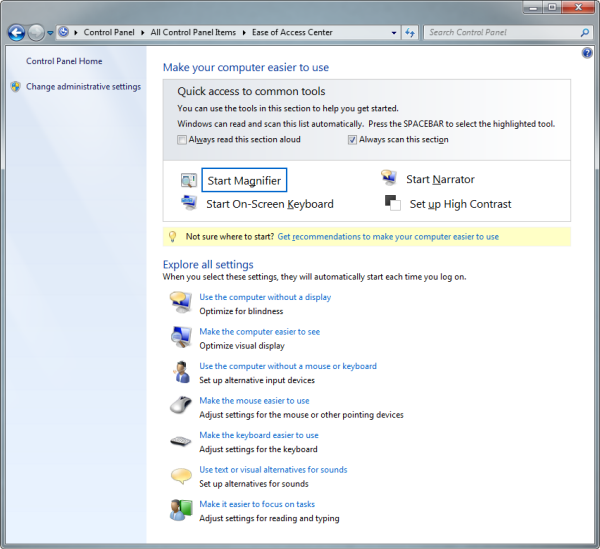
ease-of-access-main

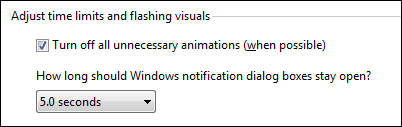
Adjust time limit of notification dialog

Windows would flash the icons in taskbar when it completes an action or is waiting for your input. For example, if you are downloading something in your browser and the download completes, the browser icon in the taskbar would flash. If you receive a new notification in your instant messaging program, the icon of the IM program would flash. Windows allows you to limit the time duration for which the icon will flash.
ease-of-access-1

This setting is found under Ease of Access. Open Ease of Access from the Control Panel and click on “Use the computer without a display”. From the window that opens choose a time limit for notification.

Adjust thickness of blinking cursor and focus rectangle

Inside text editors, browser forms and text input windows, the mouse cursor turns into a blinking vertical cursor. You can set the thickness of this cursor. You can also set the thickness of the dotted focus rectangle that appears around selectable items on an interface. Both these options are found under “Make the computer easier to see” in Ease of Access.

ease-of-access-2

In the screenshot, the rectangle around “Make the focus rectangle thicker” is the focus rectangle.

Adjust mouse pointers

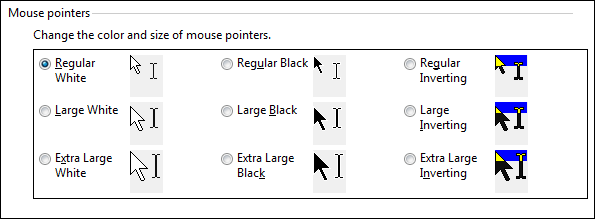
You can change the color and size of the mouse pointer from the “Make the mouse easier to use” option. Aside from the usual black and white pointers you can make the pointer change color dynamically by inverting the color of the mouse with respect to the background color. This makes the mouse pointer easy to spot.
ease-of-access-3

Control mouse using the keyboard

When you turn on Mouse Keys, you can move the pointer across the screen using the Numpad arrow keys. Speed and acceleration of the pointer can be adjusted as required.

ease-of-access-4

Active window without clicking

You can activate any window by simply hovering the mouse over it and staying for a few seconds. No clicks are necessary. This setting is also found under “Make the mouse easier to use”.

ease-of-access-5

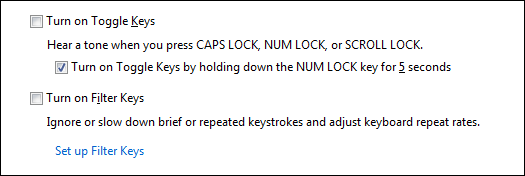
Beep when Caps Lock and Nums Lock is pressed

Isn’t it annoying when the Caps Lock gets accidently turned on while you were typing? Or the Nums Lock was off the entire time you were entering numbers? Under the “Make the keyboard easier to use” option, you can make the computer beep every time the Caps Lock and the Nums Lock keys are pressed. To make this happen, enable the Toggle key option.
ease-of-access-6

Adjust keyboard sensitivity

Click on “Make the keyboard easier to use” option and then click the link “Setup Filter Keys”. To adjust key sensitivity turn on Bounce keys. Using this setting you can tell Windows to ignore keystrokes that occur in rapid succession, or keystrokes that are held down for several seconds unintentionally.

ease-of-access-7

To avoid accidental key presses you can set a minimum time period for which the keys need to be pressed to register as a valid key press. Similarly, you can set a minimum time duration the computer will wait before accepting the next keystroke. This avoids accidental double key presses in short succession. You can also make the computer beep whenever any key is pressed, Hollywood style. (Also see Nullsoft Beep).

Disable icon flashing

Windows can replace two types of audio information with visual equivalents. You can replace system sounds with visual alerts and you can display text captions for spoken dialog in multimedia programs.

You can completely turn off flashing icons and flashing active window that Windows use a visual notification clues. This setting is under “Use text and visual alternatives for sounds”

ease-of-access-8

Have you used Ease of Access settings before?

Sunrise Seven–Windows 7 System Tweaker

Be the first to comment!
Labels: ,

Sunrise Seven is a powerful Windows 7 customization and tweaking tool that brings all the tiny configuration settings and options distributed across the operating system under one common roof. Sunrise Seven meets your customization requirement in almost all that concern appearance, performance, security and usability. Not only does it allow for quick customization, but it also helps you discover hundreds of settings you were probably not even aware of in the first place.

The interface of this tool is straightforward and simple. On the left are categories into which the many options are split, and on the right are the options clubbed under a particular category. These include UAC setting, performance, security, explorer and start menu, cleaning and maintenance, appearance and other miscellanea.

sunrise-seven

Most of the settings can be enabled and disabled by clicking on the corresponding checkbox. Sometimes there are sliders and selection menus. There is no ‘save’ or ‘apply’ buttons; the tweaks are applied right away, which is something of a concern. It is highly recommended that you create a system restore point before you attempt any change you do not fully understand. Thankfully, the program author offers this option from within the program window.

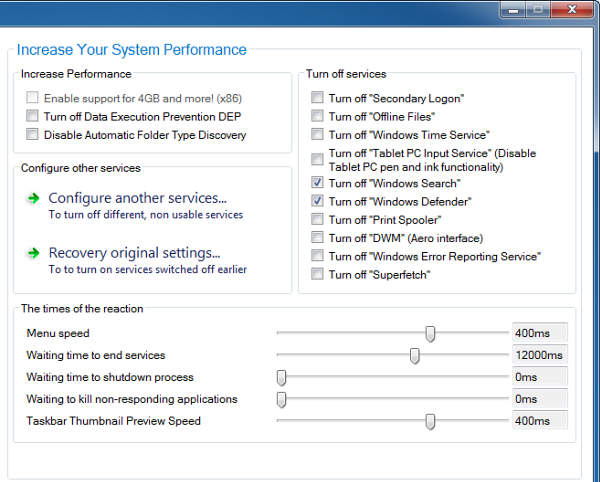
Sunrise Seven encompasses a huge number of tweaks but the program offers no explanation of the same. The only hint to their effect is the name. The majority of the settings are self explaining, but some of them are not explicit enough for the average user to have an idea of what it stands for. The Performance section that concerns with services is possibly the most cryptic of all. There is a button called “Configure another services” which doesn’t mean anything. Don’t click on it as it seems to turnoff services it thinks are unnecessary, and without warning.

The problem is further aggravated by the undesirable behavior of the program to apply the setting immediately. This leaves no room for experimentation. You have to know exactly what each option means and what their effect will be on the system. This is no tool to play around with.

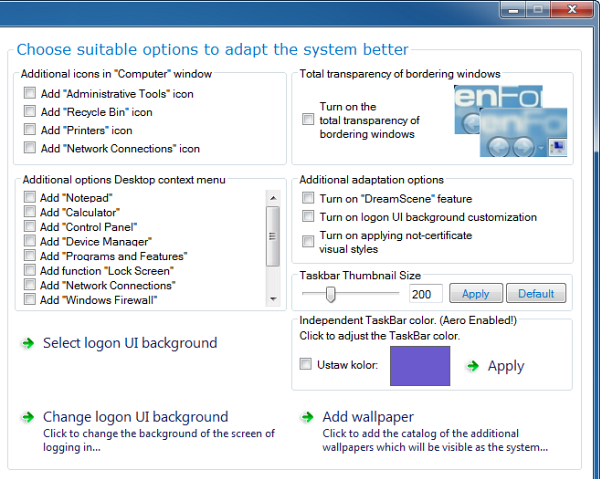
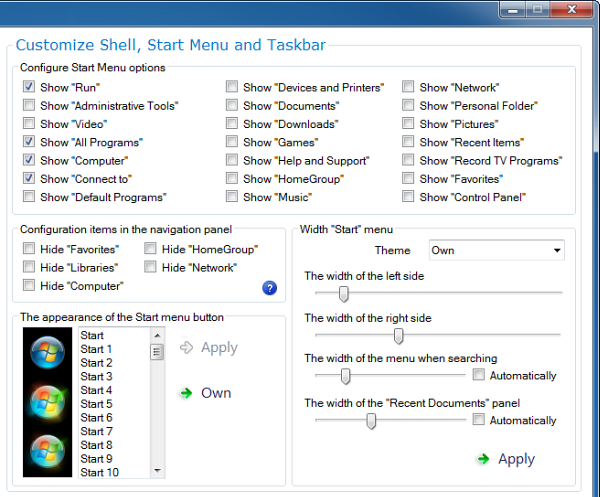
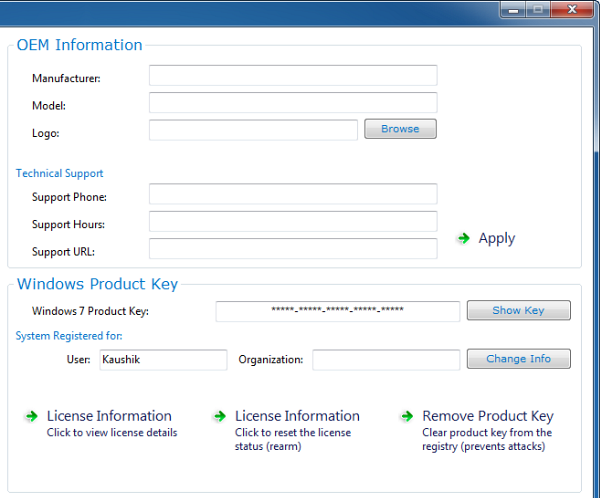
On the bright side, you will probably won’t need any other tweaking tool if you have Sunrise Seven around. Aside from the system integrated tweaking, you can do other tricks like change logon screen, change start button/orb, pin a mini quick-launch-type start menu to the taskbar and change OEM information, branding and Windows product key.

sunrise-seven2

sunrise-seven3

sunrise-seven4

sunrise-seven5

sunrise-seven6

sunrise-seven7

sunrise-seven9

sunrise-seven8

16 New Windows 7 Themes [February 2012 Edition]

Be the first to comment!
Labels: ,

This collection consist mainly of themes released/updated during the last two months since the last collection.

Previous collections: September, August, July, June and May and Windows 7 themes – Part 1, Part 2, Part 3, Part 4.

Arimo

arimo

Beginnings

beginnings

Different Touch 7

different_touch_7

MaMaMiya Suite 12

mamamiya

Memolotrys

memolotrys

Minimal

minimal

Next Level

next_level

Obsidian for Windows 7

obsidian

Pre Silver 1.0

pre_silver

Shiroi

shiroi

Kuroi

kuroi__shiroi__s_dark

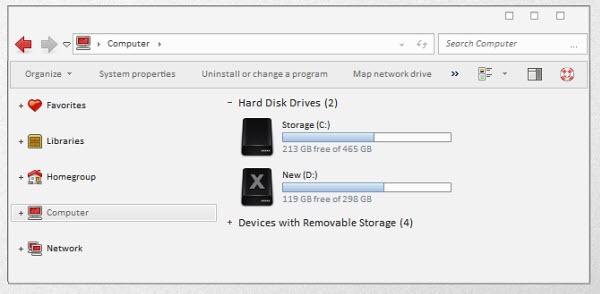
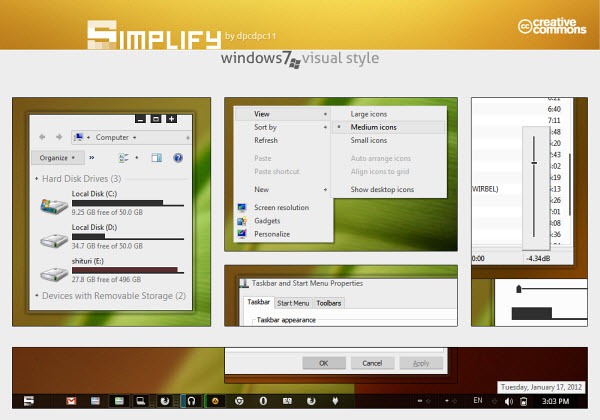
Simplify Visual Style

simplify

Simplify Skin Pack

simplify_skin_pack

Thema Luna

thema_luna

Windows 8 Start Screen Full 3.0 (For XP, Vista and 7)

windows_8_start_panel_full_3_0

Xbox Skin Pack 1.0

xbox_skin_pack_1_0


Recent comments

Recent comments

Followers

Sponsors

Recent comments

fefew

Recommend on Google

Copyright © 2011 All Rights Reserved Thesis skin. by Nitin. Converted into Blogger Template by TheTechFizz.