Get the latest updates from us for free

Sign-up for FREE weekly Newsletter.

3 Ultra Portable Computers You Can Buy For Under $100

Be the first to comment!
Labels: , ,

Over the last few decades, technology in general and computing in particular have developed at a tremendous pace. Computers have shrunk from room sized behemoths to something you can slip into your trouser pocket. Yes, the cell phone is a computer too and with the recent development in state-of-the-art mobile operating system such as Android and iOS, the line dividing computers and cell phones is increasingly becoming blurred.

The price is dropping fast too, but not fast enough. Several organization tried unsuccessfully to produce inexpensive notebook computers. The One Laptop per Child (OLPC) is a notable example. The goal of the project was to produce laptops that students of developing countries could afford. Initially the price was fixed at $100, but the manufacturers were unable to keep costs down and when the OLPC laptop finally went on sale in 2007, it cost twice as much.

Then in early 2011 out of the blue, a UK based organization announced a tiny computer with a tiny price tag – Raspberry Pi. This diminutive credit card sized computer is capable of anything that a desktop PC can do, including outputting HD graphics through an HDMI connection. Because Raspberry Pi doesn’t include expensive peripherals such as display, it costs just $25 or $35, depending on which model you buy.

Within a year of the Raspberry Pi announcement several more computers identical in size and performance have either been released or announced. Some of them even have a competitive price tag. Today, if you want to buy an ultra portable computer and you have just $100 in your wallet you have three choices.

Raspberry Pi ($25 – $35)

raspberry-pi

The Raspberry Pi comes in two models. Model A is slightly less capable than Model B, coming with 128MB RAM, one USB port and no Ethernet connection. It cost $25. Model B comes with 256MB RAM, two USB ports and an Ethernet connection. It will cost $35.

Both models are based on the Broadcom BCM2835 System on a Chip (SoC), which includes an ARM 11 700Mhz processor, a Broadcom VideoCore IV GPU capable of outputting at 1080p while running games like Quake 3, HDMI and VGA connectors and 3.5mm audio jack. There is no onboard storage, instead, it comes with a microSD slot. The Raspberry Pi runs on a special version of Fedora Linux.

Early this week, the Raspberry Pi foundation showed off an experimental camera module that is designed to plug into the Raspberry Pi board. The prototype version of the camera has a 14-megapixel optical sensor, but the foundation says that the final version might be less powerful in order to keep the price down. They haven’t said yet how much it will cost to purchase.

VIA APC ($49)

apc_1

The recently launched Android PC System (APC) by Taiwanese hardware manufacturer VIA includes a VIA WonderMedia ARM 11 system on a chip which is equipped with an 800MHZ processor, 512MB of DDR3 RAM, 2GB of flash storage, VGA and HDMI video outputs, speaker and microphone jacks, a microSD slot, an Ethernet port, and four USB ports. It also reportedly supports hardware-accelerated video decoding up to 720p. According to VIA, the board consumes only 4 watts when idle and 13.5 watts under maximum load.

The computer is loaded with a version of Android 2.3 optimized for keyboard and mouse input. Like Raspberry Pi, the VIA APC will ship as a bare board without a case.

At $49 a piece, the APC has more USB ports and twice as much RAM as the Raspberry Pi and also runs marginally faster.

Rikomagic MK802 ($74)

rikomagic-mk802

The MK802 has an AllWinner A10 single-core 1.5GHz ARM processor, a Mali 400 GPU, 512MB of DDR3 RAM and 4GB of onboard storage. An HDMI port on the exterior allows users to plug the computer into a high definition display. It outputs at 1080p and is said to be capable of playing high-definition video. The device also has a full-sized USB port with host support for input devices, a conventional micro-USB port, a microSD slot, and an internal 802.11 b/g WiFi antenna. The $74 computer runs Android 4.0 but the device might not be compatible with Google Android Market (Play), in which case you have to rely on third-party marketplace like the Amazon Appstore.

Among the three contenders, the MK802 is the most powerful and gets you the most bang for the bucks. The AllWinner A10 processor is almost 3 times as fast as the ARM 11 700Mhz processor used by Raspberry Pi. Also the MK802 has twice as much RAM as the Raspberry Pi.

The VIA APC is positioned at a sweet spot between the two. The processor of APC and that of Raspberry Pi is comparable in performance but the extra RAM on APC will allow more head room for programs resulting in smoother performance. However, if you are intending to build an HTPC, you should look elsewhere because APC is incapable of 1080p video output.

The Raspberry Pi wins on price but with thousands of customers in queue you have to wait for months before you can get your hands on it.


How to Remove Information About Yourself from Google Search

Be the first to comment!
Labels: , ,

Search engines collect information from billions of pages out on the internet. Among these there might be pages that carry information about you - your email, your job, your interests, and even personally identifiable information such as your name, your phone number and your address. A surprisingly large number of people share a disturbingly detailed account of their lives with no one in particular on Facebook, Twitter, Foursquare and dozens of specialized social networking sites. Social networking sites usually offer certain degree of privacy but other sites such as forums and blogs are viewable by anybody and can appear in search results.

erase-name

People have the tendency to reuse usernames when registering on different websites. It is very easy to build up a profile on such a person by searching their username on Google, and following every result the username shows up on. By picking up breadcrumbs, reading remarks and comments left behind on discussion boards anybody can get a fair idea of the person’s interests, where he lives and what he does.

If something compromising about you is on the Internet, first try to remove it from the site where it's appearing. This means that you need to contact the webmaster of the page and ask them to take down the content in question. Remember that Google only indexes information that is already available on the Internet. If the content isn't removed from the original site, people will be able to see it even if it doesn't appear in Google's search results.

To contact a webmaster, find a 'Contact us' link or an email address for the webmaster on the website itself. If you can’t find a contact address, look up a site's webmaster information using a special search called a 'Whois' search. You can perform a Whois search using Google: just search for “whois www.example.com”. Read how to find who owns a website for details.

Once the content is no longer available, go to www.google.com/webmasters/tools/removals and click on “Create a new removal request” and enter the URL of the page you want to remove from Google search. The URL is case-sensitive—use exactly the same characters and capitalization that the site uses.

There can be two scenarios:

  1. The page is removed from the site and now returns error code 404, i.e. Page Not Found.
  2. The page in question still exists but has been updated to remove information about you.

The webmaster tool automatically detects if the page returns error 404 and will ask you to confirm your request.

removepage

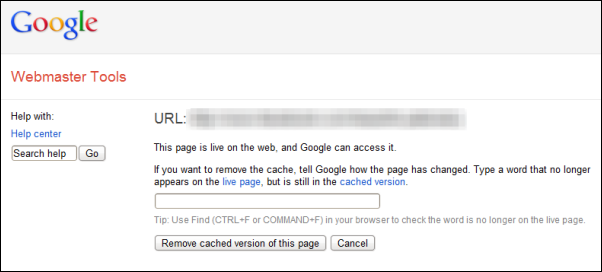
If the page still exist, you have to tell Google how the page has changed. For this, Google will ask you to type a word that no longer appears on the live page, but is still in the cached version. For example if the Google cache of the page contains your name which has been removed from the live page, type your name as it appears in the cached version but doesn’t appear on the updated page. Don’t tell Google that "my name has been removed'. Google suggests users to type a single word rather than a phrase as it often more effective.

remove-cache

Confirm the request and then Click Remove Cache. Once your request has been processed and Google confirms that the submitted word no longer appear on the page, the search result will no longer show a snippet, nor will the cached page be available. There is no estimated time frame when this would happen. It can happen as quickly as the next day or take weeks to update.

Before you request removal of your content from Google, you should make sure that the problematic content has been removed from the web. Otherwise, even if your request is successful, the information could reappear in Google’s index after 90 days.

Source: Google

Image credit: BigStockPhoto

How to Find Out Who Owns a Website

Be the first to comment!
Labels: ,

The easiest way to find out who is responsible for a particular website is to ask the webmaster himself or herself. Websites usually have a “contact us” or “about us” page on the site or an email address, contact form or any other means of contacting the webmaster directly. Some webmasters will leave their Twitter ID or link to their Twitter page and Facebook page on the website. If you can’t find any information about the website’s owner, there is another way to find out who owns a particular website.

The web supports a special search called Whois (pronounced as the phrase “who is”) that queries databases called Whois servers that stores information on all domain names registered such as the name of the individual or company who registered the domain name, the IP address of the domain, date of registration and expiry and other related data.

You can perform a Whois search using Google: just search for “whois www.example.com” (without the quotation) and you will find several results from different Whois lookup services. Alternatively, you can directly query the domain on any Whois lookup tool. My personal favorite is www.zoneedit.com/lookup.html

Click on the link above and type the domain name you want to query under Whois and click on the lookup link. This is the result of a Whois query of nytimes.com:

Whois Server Version 2.0

Domain names in the .com and .net domains can now be registered
with many different competing registrars. Go to http://www.internic.net
for detailed information.

Domain Name: NYTIMES.COM
Registrar: MELBOURNE IT, LTD. D/B/A INTERNET NAMES WORLDWIDE
Whois Server: whois.melbourneit.com
Referral URL: http://www.melbourneit.com
Name Server: NS1T.NYTIMES.COM
Name Server: NYDNS1.ABOUT.COM
Name Server: NYDNS2.ABOUT.COM
Status: clientTransferProhibited
Updated Date: 30-aug-2011
Creation Date: 18-jan-1994
Expiration Date: 19-jan-2013

>>> Last update of whois database: Wed, 23 May 2012 05:37:45 UTC <<<

The query returns the registrar under which the domain is registered. A domain name registrar is an organization authorized by their respective domain name registries to manage the reservation of Internet domain names and offer such services to the public. The query also returns the Whois server managed by the registrar.

In our example, the domain nytimes.com is managed by MELBOURNE IT, LTD and the Whois server is located at whois.melbourneit.com, our next stop.

On whois.melbourneit.com, enter the domain name - nytimes.com, in our case - and query the server. This time, the registrar will return detailed information about the domain owner including name, address and phone number. This is the result of a Whois query on nytimes.com.

Domain Name nytimes.com
Creation Date 1994-01-18
Registration Date 2011-08-31
Expiry Date 2013-01-20
Organisation Name New York Times Digital
Organisation Address 620 8th Avenue
New York
10018
NY
UNITED STATES
Admin Name Ellen Herb
Admin Address NEW YORK TIMES DIGITAL
620 8th Avenue
NEW YORK
10018
NY
UNITED STATES
Admin Email hostmaster@nytimes.com
Admin Phone +1.2125561234
Tech Name NEW YORK TIMES DIGITAL
Tech Address 229 West 43d Street
New York
10036
NY
UNITED STATES
Tech Email hostmaster@NYTIMES.COM
Tech Phone +1.2125561234
Tech Fax +1.1231231234
Name Server NYDNS1.ABOUT.COM
NS1T.NYTIMES.COM
NYDNS2.ABOUT.COM

As you can see this is pretty detailed.

However, many registrars offer private registration, in which case the identity of the webmaster is hidden. If the webmaster opted for private registration then instead of the webmaster’s contact information, the contact information of the registrar will be shown in Whois results. In such cases, there is no easy way to identify the owner of a domain/website through Whois.

There is one last option that might work: contact the website’s hosting company and ask for the owner’s information. It’s unlikely the hosting company will tell you but it’s worth a try.

But how to know where a website is hosted? Ask WhoIsHostingThis.com

Turn Bookmarklets into Pretty Firefox Buttons

Be the first to comment!
Labels: ,

If you use a lot of bookmarklets, you probably have them cramped inside your bookmarks bar. Some users suggest using folders to organize bookmarklets, just like you organize your bookmarks. But if you want to get them out of your bookmarks bar (which serve a totally different purpose) and into the toolbar where they should logically reside, here is nice trick.

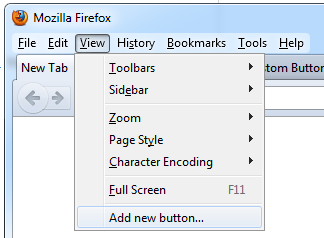
Install the Custom Buttons add-on. Restart Firefox and enable the Menu Bar. From the View menu click on 'Add new button...'. You can get to this option by right clicking on the toolbar too. This way, you won’t have to enable the Menu bar.

ff-add-button

Enter a Name for the button, but leave the Button URL empty. The add-on comes with a few colored stars, but we will use 16x16 favicon for the service. Grab the favicons of the services whose bookmarklet you wish to use by going to getfavicon.org and entering the URL of the service. Save the favicons somewhere on your hard drive and then load them into the button creator.

ff-add-button2

Under the Code tab, add the JavaScript of the bookmarklet and wrap it like this:

loadURI("BOOKMARKLET-GOES-HERE");

You can get the JavaScript of your existing bookmarklet by simply coping the URL from the bookmarklet button.

Once your button is created, click View > Toolbars > Customize, and then drag the buttons from there onto any part of your browser toolbar.

ff-bookmarks-button

[via ReadWriteWeb]

Windows 8 Drops Aero. Goes Metro All The Way Down

Be the first to comment!
Labels: ,

Many users pointed out that the classical Aero desktop didn’t blend with the Metro start screen, a “fact” that apparently Microsoft has started to take notice. So last Saturday, over at the Building Windows 8 blog, Microsoft engineers wrote a 10,000 worded post describing why they decided to move away from the Aero desktop, an interface that became wildly popular when it made its appearance in Windows Vista.

We spent a lot of energy carefully considering how substantially to update the appearance of the desktop in Windows 8. We looked at many, many pictures, and considered hundreds of designs. … In the end, we decided to bring the desktop closer to the Metro aesthetic, while preserving the compatibility afforded by not changing the size of window chrome, controls, or system UI. We have moved beyond Aero Glass—flattening surfaces, removing reflections, and scaling back distracting gradients.

We applied the principles of “clean and crisp” when updating window and taskbar chrome. Gone are the glass and reflections. We squared off the edges of windows and the taskbar. We removed all the glows and gradients found on buttons within the chrome. We made the appearance of windows crisper by removing unnecessary shadows and transparency. The default window chrome is white, creating an airy and premium look. The taskbar continues to blend into the desktop wallpaper, but appears less complicated overall.

To complete the story, we updated the appearance of most common controls, such as buttons, check boxes, sliders, and the Ribbon. We squared off the rounded edges, cleaned away gradients, and flattened the control backgrounds to align with our chrome changes. We also tweaked the colors to make them feel more modern and neutral.

windows8-no-aero

However, as Paul Thurrott points out, the reasons Microsoft puts forward in support for the removal of Aero isn’t convincing, but rather full of hypocrisy. Paul notes that while the Aero glass border is gone the rest of the UI retains the old look which still has a lot of chrome and visual cacophony Microsoft talks about getting rid of.

On the other hand, removing Aero will sure have a positive effect on laptop’s battery life. Although Aero glass looks nice it drains the battery. Users had the option to turn Aero off, but the alternative – Aero Basic, is ugly. The new Metro explorer looks comparatively better.

These changes will not be included in the coming Release Preview. You can hope to see them all in the final release of Windows 8.

Automatically Process Files When you Upload them to Dropbox or Google Drive

Be the first to comment!
Labels:

Cloud storage services are typically meant to used for online back and to synchronize files across all multiple devices a user owns. But Wappwolf Automator permits us to use our cloud storage accounts for another purpose – to automatically process files and reupload or sync them to various other web services such as Flickr, Evernote and so on. Wappwolf currently works with Dropbox and Google Drive, and supports for SkyDrive and Box is expected to arrive soon.

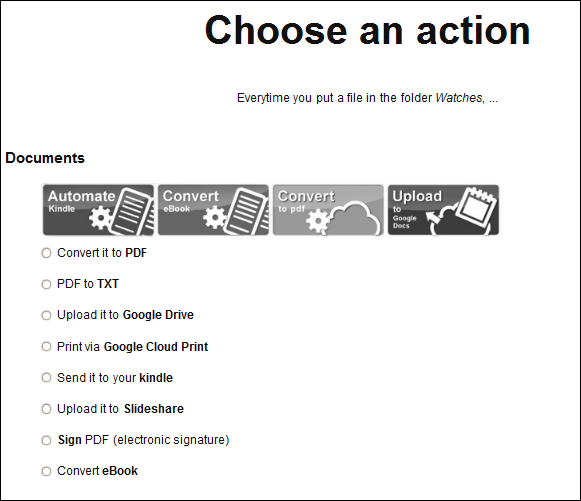
Wappwolf Automator connects to your Dropbox or Google Drive account and monitors the folders of your choice. When it detects new files in the monitored folders, it performs automated actions you have define upon the newly uploaded files. Wappwolf offers a choice of actions such as convert a document to PDF, resize images, apply photo effects, email file, send file to Kindle, upload file to Facebook, Evernote, Basecamp, Flickr, and a whole lot more.

Wappwolf

The setup process is simple enough. You authorize Wappwolf Automator to connect to your Dropbox account and access your files therein, then select a folder you want to use for automation and assign an action from the provided list. Some of the automation is provided by third party services. For instance, the convert to PDF function is provided conv2pdf.com and photo effects are provided by Photofunia. If you want to know what happens to your files once you allow Wappwolf Automator to process them you should consult the privacy policies of the services Wappwolf uses for processing.

Additionally, when connecting to a user’s Dropbox account, the user can choose between “Limited access” where Wappwolf Automator has access to only files in that particular folder and “Full access” that enables Wappwolf Automator to access all their files and folders. This choice is only available for Dropbox connection and not Google Drive.

The full list of automations suported by Wappwolf are:

Documents

Convert to PDF
PDF to TXT
Google Drive Upload
Google Cloud Print
Send to your Kindle
Slideshare Upload
E-Sign PDF
Convert eBook

Audio
Convert audio

Infos

Twitter
Facebook
google URL Shortener

Pictures

Facebook Upload
Flickr Upload
Picasa / Google+ Upload
Downscale
Convert image
Rotate image
Write text on image
30 photo effects
Stamp a logo
"Dislike"-Stamp
Remove EXIF infos
Find a similar image

Any file

E-mail
Zip file
Save it to another folder
Rename
FTP-Upload
Upload to box
Upload to Microsoft SkyDrive
Upload to Sugarsync
Upload to Evernote
Upload to Basecamp project
Encrypt
Decrypt

Related: If This Then That: Automate The Internet With Conditional Logic - Instant Fundas

One Year Ago: Lost Camera Finder, Conflict History and iPrint

Be the first to comment!
Labels:

ESET Releases Rogue Application Remover

Be the first to comment!
Labels:

Antivirus software vendor ESET has just released a new malware scanner designed to detect and remove different types of rogue applications from your computer. Rogue applications are those programs that are malicious in nature but pretend to be harmless or even useful, such as fake anti virus programs (that deceives unsuspecting users into paying for fake or simulated removal of malware), and scareware (software products that produce frivolous and alarming warnings or threat notices for fictitious or useless commercial firewall and registry cleaner software).

Aside from detecting and cleaning rogue software, ESET Rogue Application Remover is also capable of reverting changes made by the rogue applications in Windows registry. By design, ERAR focuses mostly on rogue applications that affect the operating system in a negative way and that are difficult to remove by our products. ESET Rogue Application Remover, however, should not be considered a substitute for regular antivirus and antimalware software.

eset-rogue-app-remover

ESET Rogue Application Remover is a small program, less than 3MB in size, which is impressive. ERAR must be run with elevated administrator rights either in normal or safe mode. Just right click on the executable file and choose “Run as Adminisrator”. Internet connection is recommended for better detection efficiency and accuracy but also for automatic submission of detected files to ESET's viruslab when approved by the user.

Upon running, ERAR will scan your running processes and kill any that it perceives to be a malware. I use a program called Shutdown Guard to prevent programs from unceremoniously shutting down Windows. ERAR perceived it as a threat and killed the program without warning. However, it was decent enough to ask before trying to delete the program. ERAR will ask your permission before each clean operation, so make sure you are there. Scanning is very fast, so you don’t have to wait too long.

ERAR also supports restoration of quarantined objects using the /r switch. For a complete list of supported options, run it with the /? switch.

Unlike ESET’s other products, ESET Rogue Application Remover is free.

[via Wilders Security and JKwebtalks]

MaKey MaKey Turns Any Surface Into a Keyboard Controller

Be the first to comment!
Labels: ,

Ever wanted to play Pac Man with a pencil drawn controller or play the piano with bananas? Yes, you can, thanks to Makey Makey, a simple circuit board that turns almost any object into a touch based computer key. Currently being funded at KickStarter, it is by far one of the coolest DIY project I have ever seen.

Makey Makey plugs into a computer via USB and lets users connect the arrow keys, space bar and left mouse click to physical objects. Just connect one end of a wire to the circuit board using crocodile clips and the other end to any electrically conductive object such as bananas, pencil graphite, paint, silverware and cats. Touching the object simulates a key press which is fed to the computer via the USB port. For sensing closed switches on the input pins, high resistance switching is used so you can close a switch even through highly resistive materials like your skin, leaves, and play-doh.

makey-makey

Since no additional software is required MaKey MaKey works with all programs and webpages that accepts keyboard and mouse input.

MaKey MaKey has been used to play piano with bananas,

makey-makey2

Pac Man with a pencil drawn controller

makey-makey3

custom-made alphabet soup keyboard and many more.

If you want this, you can pledge $35 and get the kit delivered to you anywhere in the US. International destination costs an additional $10. The kit includes the MaKey MaKey, Alligator Clips, and USB Cable.

SpaceEngine: Open Source 3D Universe Simulator

Be the first to comment!
Labels: ,

If you are a space buff, you must have heard of Celestia, a three-dimensional space simulation program that allows users to travel through an extensive universe exploring planets, stars and galaxies. You can zip through space, visit planets, orbit stars and go forward or backward in time. For more than a decade, Celestia was pretty much the only thing we had. Now we have a new entrant – SpaceEngine.

SpaceEngine is another free space simulation software that lets you explore the universe in three dimensions, starting from planet Earth to the most distant galaxies. Users can fly through the SpaceEngine universe using keyboard controls at any speed from meters per second to hundreds of light years per seconds. The direction of travel is controlled by the arrow keys and the speed of travel by the mouse wheel. You can pan the view or rotate around an object using the mouse. To search an object, press F3 and type the location, or press F2 to bring up the solar system browse. Once you’ve chosen your destination, hit G to arrive at the celestial body. These actions are also available from a menu which is hidden by default and can be invoked by pressing the ESC key

space-engine

For each selected object, the program displays detailed information like the class of planet/star, mass, size, diameter, apparent magnitude, orbit, tilt etc.

SpaceEngine is a hefty download at 400MB, and the large size is due to the large number of high-definition texture maps of earth and other planets of the solar system. In many ways SpaceEngine is better than Celestia, especially the rendering and details. Watch the following videos.

Features:

  • All types of celestial objects are represented: planets, moons, asteroids, stars, star clusters, nebulae and galaxies.
  • The observer is free to move around the universe. Transition between any celestial body and any scale occurs continuously.
  • The observer can move around in space using the WASD keys, like in First Person Shooters. Movement with inertia is made possible in Spacecraft mode or Aircraft mode.
  • "Select and fly" autopilot: just click on any object with the mouse and hit the 'G' key to automatically go directly to the object.
  • Search for celestial objects by name. View planetary system maps. Save locations and an autopilot's journal.
  • The orbital motion of planets and stars is calculated in real time, with the ability to accelerate, decelerate, or reverse the flow of time.
  • The orbital paths of celestial objects can be shown, along with their labels and grids.
  • Automatic binding of the observer to the moving object and automatic selection of optimum flight speed.
  • Known celestial objects are represented using data from the catalogs: galaxies (NGC/IC), stars (HIPPARCOS), star clusters, nebulae, planets (our Solar system data and known extrasolar planets).
  • Uncharted regions of space feature procedurally generated objects: stars, star clusters, nebulae and planetary systems.
  • 3D landscapes of planets and stars: for many solar system bodies actual data from space probes is used.
  • For uncharted exo-planets the surface is generated procedurally.
  • Volumetric 3D sprite models of galaxies and nebulae including light-absorbing dust clouds, optimized render to a skybox and impostors.
  • Lighting effects: lens flares, solar eclipses, shadows of planetary rings. Celestial objects cast light and shadow on to each other.
  • The exact model of the Earth's atmosphere (code by Eric Bruneton), adapted for the other planets.
  • Ability to import users addons: models, catalogs, and textures.

3 Tools to Manage All Cloud Storage Services (Dropbox, Google Drive, SkyDrive etc) at One Place

Be the first to comment!
Labels: , ,

So you have signed up for half a dozen cloud storage and file synchronization services, because with so much free space being thrown around, it is hard not to. While it’s great to have so many choices, it’s inconvenient to have your files distributed across a number of different cloud services. But not if you can manage all your cloud accounts and access all your files from a single place. Here are 3 free services that lets you do that.

Joukuu

Joukuu is a free Windows program that lets users manage all their files on Dropbox, Google Docs, and Box.net from their desktops and without having to switch between separate windows. Simply add all your accounts and you are done. You can drag and drop files between accounts, or drag and drop files from Windows explorer into the Joukuu’s window to upload. You can download, open and edit documents from your desktop. You can also see all your files from all your accounts at once. Files are automatically sorted by types such as documents, images, videos and the rest are dumped as “others”.

joukuu

The Lite version of Joukuu allows you to add only one account per cloud service. You'll need to subscribe for $60 a year if you want to add more than one Google, Box and Dropbox account.

Joukuu says that support for Skydrive, Sugarsync, Huddle and Zoho will be added soon.

Otixo

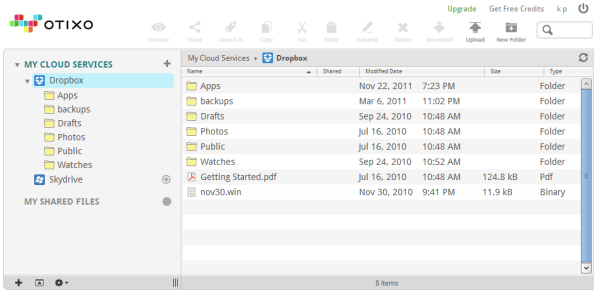
Otixo lets you connect to Dropbox, Box, SkyDrive, Google Docs, SugarSync, Picasa, MobileMe, Amazon S3, as well as FTP sites and WebDav drives. The addition of FTP and WebDAV opens a whole lot of opportunity like the ability to add 4shared, GoDaddy Online Storage and dozens of other services that support any of these two protocols.

otixo

Unlike Joukuu, Otixo is a web app which means that you have to manage everything from your web browser. Fortunately, the interface is very user friendly. Once you connect your accounts, a row of icons come alive at the top of the screen, each dedicated to a particular task like copy, paste, download, share, etc. To upload files you can drag-and-drop them inside the browser window. You can even copy or move files from one service to another without downloading to your computer.

Another great feature of Otixo is the ability to map your Otixo account as a WebDAV drive on Windows explorer. This way you can access all your cloud accounts right from your computer’s file explorer.

Unfortunately, the crippling blow comes when you realize that you get only 250MB of monthly bandwidth on free Personal accounts. Business accounts without the limit are slightly expensive at $10 a month.

Primadesk

Primadesk is a web app that supports over 30 services, including Box.net, Dropbox, Facebook, Gmail, Google Docs, SkyDrive, Picasa, Hotmail, Photobucket, Shutterfly, Smugmug, Snapfish, SugarSync, Flickr, Yahoo Mail, Evernote and Zoho. After connecting your accounts to Primadesk, you can view all your documents in one place, search files on all the services by topic, date range and content type, copy and paste files, or drag and drop between services. Primadesk also supports IMAP so that you can bring in your email inbox too.

primadesk

On free accounts you get 1GB of storage from Primadesk but you can only connect up to 5 services. Paid subscriptions starts at $5 a month.

Related: Put Your Dropbox or Google Drive Folder Inside SkyDrive for Multiple Cloud Backup


Recent comments

Recent comments

Followers

Sponsors

Recent comments

fefew

Recommend on Google

Copyright © 2011 All Rights Reserved Thesis skin. by Nitin. Converted into Blogger Template by TheTechFizz.